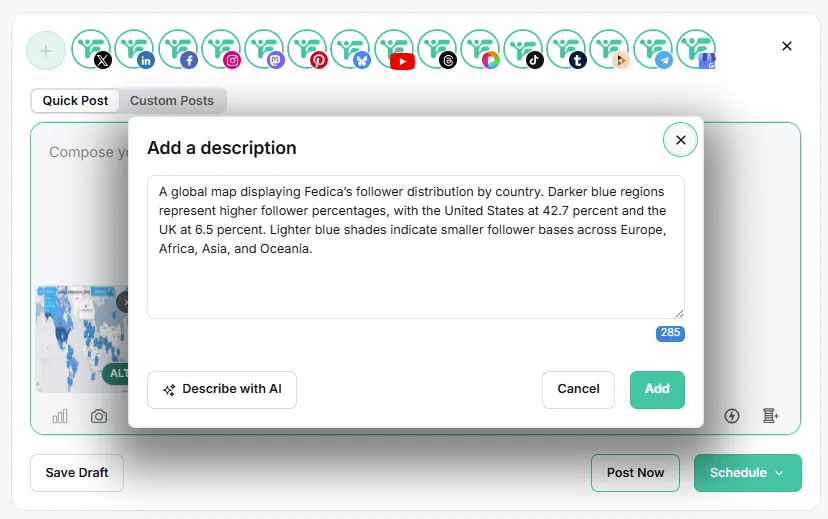
Alt text is one click in Fedica now. Upload an image in the composer or the media library, click generate, and a description lands in the field ready to publish, on every platform Fedica posts to. No blank box, no switching tabs, no writing one more small thing at the end of a post you already finished.
That click does the part everybody skips. The few seconds after it are where you make the description sound like you.
Key Takeaways
- One click fills the field. Generate alt text in the composer or the media library, on every platform.
- Give it your voice. Generated descriptions are accurate and flat by default. Your alt text can sound like the rest of your writing.
- Check the specifics a model can’t be sure of: names, product versions, numbers in a chart, text that matters.
- Set it once in the media library and the description follows that image into every future post.
- Make it automatic. Turn on “Avoid missing ALT-text” and Fedica won’t let a post with an undescribed image leave the queue.
- More than one in four images on the web’s most-visited pages carry alt text that’s missing or a placeholder, per WebAIM’s February 2026 audit. A filled field is already ahead.
Alt Text in One Click
The reason alt text goes unwritten was never that people don’t care. It’s that describing an image is one more field at the end of a job you’ve already finished, and it loses every time you’re in a hurry. Researchers building a Twitter image dataset found as many as 98% of uploaded images had no alt text, years after the field was available to everyone. That’s a friction number, not an attitude number.
Fedica generates a description in two places. In the composer, upload an image and the alt text field fills itself. In the media library, do the same for images you’ll reuse, and the description is stored with the file.
Current models are genuinely good at this part. They name people, objects, food, animals, buildings, settings, colours, and how many of a thing there are, and they read text inside an image reasonably well. On a photo of your team at a conference booth, you’ll get something close to what you would have typed, in the time it takes to click.
So the field is full and it’s accurate. Now make it good.
Give It Your Voice
Here’s the thing most alt text guidance misses. A screen reader user is a reader. They get your caption in your voice and then, on the image, a flat clinical sentence that sounds like it came from a different company. Alt text is the one piece of copy in your post that nobody thinks of as copy.
Generated descriptions default to neutral, which is the right default and the wrong finish. Compare:
Generated: A person sitting at a desk holding a mug, looking at a laptop screen.
With your voice: Our designer, three coffees into the rebrand, staring down version nine.
Both describe the image. The second one is part of the post. It carries the same warmth as the caption above it, which is what a reader using a screen reader gets to enjoy along with everyone else.
A few things that travel well from your captions into your alt text:
- The names you actually use. If your audience knows the product as “the map”, say the map, not “a data visualisation interface”.
- Your level of formality. Contractions, humour, and directness belong here as much as anywhere else in the post.
- The detail you’d have pointed at. Generated text describes evenly. You know which part of the picture you wanted people to notice.
One rule holds it together: clarity comes first. If a joke makes the image harder to picture, keep the joke in the caption and let the alt text describe. Voice is a finish on top of a clear description, not a replacement for one.
Check the Details That Matter
The second pass is quick, and it’s about specifics rather than style. A model describes what’s in front of it confidently, which is usually right and occasionally confident about the wrong detail.
Worth a glance every time:
- Names. People, places, products. A model sees a phone; you know it’s the Pro model in Midnight.
- Numbers. Figures on a chart, prices, dates, scores.
- Text in the image. Models read it well, then truncate long text and drop emphasis.
- The point. The W3C’s alt decision tree asks you to write “a brief description of the image in a way that conveys that meaning” — the meaning, not the inventory. You know why the image is in the post.
That last one is worth an example, because it’s the only part a better model won’t solve. Two people post the same quarterly chart. One is posting it because revenue crossed a line, the other because the old brand template looked dated next to the new one. Same image, same objects, two different descriptions. The generator writes an even description of the chart both times, and you’re the one who knows which story it’s in.
Where a Second Look Pays Off
Some images need nothing. Some are worth ten seconds. A rough guide:
| Image type | Usually ready to go | What to add |
|---|---|---|
| Photos of people, events, places | Yes | Names, and your tone |
| Product shots | Yes | The specific model, finish, or variant |
| Food, animals, scenery | Yes | Little to add beyond voice |
| Decorative and stock-style images | Yes | Keep it short |
| Screenshots of an interface | Worth a look | Which button, error, or number is the point |
| Charts and graphs | Worth a look | The takeaway, not the chart furniture |
| Memes and jokes | Worth a look | The gap between image and text, where the joke lives |
| Before-and-after pairs | Worth a look | What changed between the two halves |
| Text-heavy graphics and quote cards | Worth a look | Any text that got truncated, and who said it |
The pattern in the right-hand column: these are the images where one element matters much more than the rest, and you’re the person who knows which one.
Set It Once, Reuse It Everywhere
Alt text saved in the media library stays with the image. Pull that same graphic into a post six weeks from now and the description comes with it.

That’s most valuable on exactly the images from the second column above. Your product screenshots, your recurring chart templates, and your brand graphics get posted over and over, so a description you wrote properly once keeps working every time it appears, with your wording and your names intact.
Which makes this a content library habit more than an alt text habit. Upload your assets once, tag them, save the description alongside them, and the library hands you finished images instead of raw files. We walked through the whole setup in building a social media content library in Fedica.
Make It Automatic
Generating alt text takes one click, which only helps on the posts where you remember to click. So there’s a setting that removes the remembering: turn on Avoid missing ALT-text in your account settings and Fedica won’t let you schedule or publish a post whose image has no description. Drafts still save without it, so it catches you at the moment it matters rather than interrupting you mid-thought.
Bluesky built the same idea into the platform itself, and it’s a good habit to borrow whichever network you’re posting to. We covered both sides of that in how to require alt text before a post goes out.
For getting descriptions onto posts you’ve queued up in advance, we covered the scheduling side separately in scheduling Instagram posts with alt text. And if you’d rather not have generative features in your account at all, there’s a switch in “My Account” settings that turns them off.
Frequently Asked Questions
How do I generate alt text automatically?
In Fedica, upload an image in the composer or the media library and click generate. A description appears in the alt text field, which stays editable so you can adjust the wording before you publish. It works on every platform Fedica publishes to.
Should I edit AI-generated alt text?
Usually a little, and it takes seconds. The generated description is accurate but neutral, so it’s worth adding the names you actually use, matching your own tone, and confirming any specific detail like a product version or a figure on a chart.
Can alt text have personality?
Yes, and it’s an easy win. A screen reader user is reading your post, so alt text written in the same voice as your caption reads as part of the post rather than a system message. Keep the description clear first, then let the wording sound like you.
How much alt text is actually missing?
WebAIM’s February 2026 analysis of a million home pages found 16.2% of images had no alt text, and that 10.8% of the images that had it were using placeholders like “image”, “graphic”, or a filename. More than one in four images fall into one of those two buckets, so a filled and specific field puts you ahead of most of the web.
How long should alt text be?
A sentence or two is the sweet spot for most social images. Long enough to convey what the image shows and why it’s there, short enough that a screen reader user isn’t waiting through it before reaching your caption.
What’s the difference between alt text and an image description?
Alt text is the short text in the image’s alt field, read aloud in place of the image. An image description is longer context in the visible caption, where everyone can read it. Complex images often use both: brief alt text saying what the image is, with the detail in the caption.