A LinkedIn PDF carousel is a document post: you upload one multi-page PDF, and each page becomes a slide people swipe through in the feed. You can schedule that document ahead of time instead of uploading it live. LinkedIn accepts documents up to 100 MB and 300 pages, in PDF, PPT, PPTX, DOC, or DOCX format, which its Documents API documentation confirmed again in its June 2026 update.
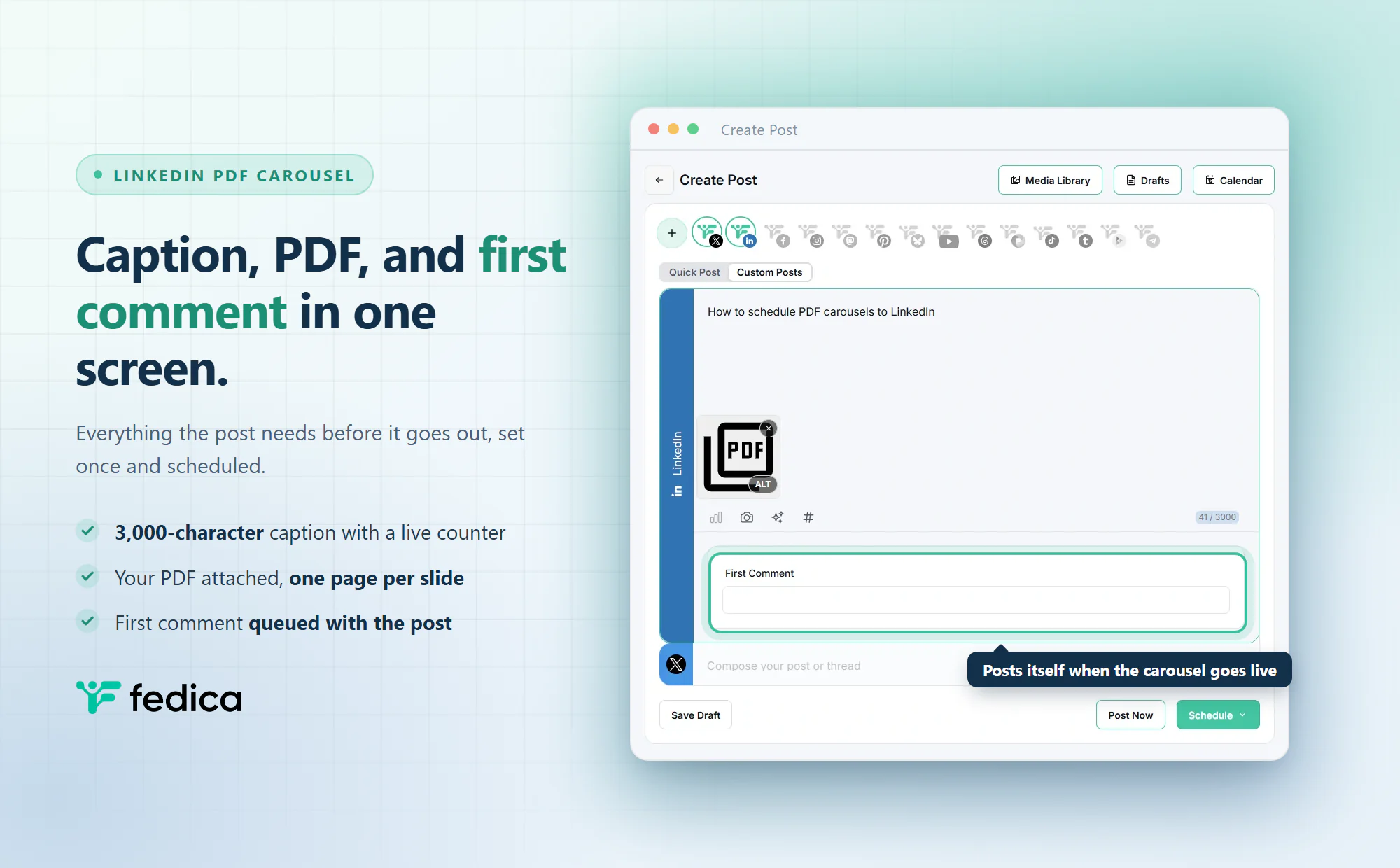
With Fedica you upload the PDF, write the caption, pick a time, and the carousel publishes on its own. You can also queue your first comment in the same screen, so the link you want people to click is waiting the moment the post goes live.
Key Takeaways
- A LinkedIn PDF carousel and a LinkedIn document post are the same thing. Each page becomes one swipeable slide.
- LinkedIn’s real ceiling is 100 MB and 300 pages. Some schedulers cap lower. Fedica doesn’t, so LinkedIn’s limit is the only one that applies.
- Document posts are LinkedIn-only. Use Custom Posts to keep the PDF on the LinkedIn lane when you’re publishing elsewhere too.
- Schedule to an exact time, or drop the carousel into an automation pipeline that picks the slot for you.
- Queue your first comment with the post. A link in the body competes with the carousel; a link in the first comment doesn’t.
- LinkedIn’s own scheduler does take PDFs from a personal profile. We tested it on 3 September 2026. It just can’t do bulk or cross-platform work.
- PDF carousels carry no alt text at all, which matters if screen reader users are part of your audience.
What a LinkedIn PDF Carousel Actually Is
A LinkedIn PDF carousel is a post built from a single uploaded document, where each page renders as one slide readers swipe through without leaving the feed. LinkedIn calls this a document post. Everyone else calls it a carousel. Both names describe the same thing, and you’ll see both used here.
One thing worth separating out: a document carousel is not a Carousel Ad. Carousel Ads are a paid format built from image cards, with their own specs and billing. Everything below is the organic document post you make from a PDF.
Build the deck wherever you already work. Canva, PowerPoint, Google Slides, Keynote, all fine. LinkedIn only sees the exported file.
PDF Carousel Specs LinkedIn Enforces
Two different sets of PDF carousel numbers get quoted as if they were the same thing: what LinkedIn actually enforces, and what people recommend. Here’s the split.
| Spec | LinkedIn’s limit | What people actually do |
|---|---|---|
| File size | 100 MB | Keep it under 10 MB so it loads fast on mobile data |
| Pages (slides) | 300 | 5 to 15 slides, because attention runs out long before page 300 |
| File types | PDF, PPT, PPTX, DOC, DOCX | PDF, because it renders most consistently across devices |
| Documents per post | 1 | One deck, one post. You can’t attach a second PDF |
| Caption length | 3,000 characters | Fedica’s composer shows a live counter as you type |
| Page dimensions | Not enforced | Portrait 1080 × 1350 px, because it takes up more vertical feed space |
Those limits come straight from LinkedIn’s own Documents API documentation, updated 24 June 2026, which states the file “can’t exceed 100MB and 300 pages.” The same page settles a second question people get wrong: a document’s owner can be a person URN or an organization URN, which means scheduling tools can publish document posts to personal profiles as well as Company Pages.
Dimensions are the part that trips people up. LinkedIn doesn’t enforce a page size, so your PDF uploads at any ratio. It just won’t look good at the wrong one.
How to Schedule a PDF Carousel on LinkedIn with Fedica
Here’s the whole flow for scheduling a PDF carousel to LinkedIn, start to finish.
Step 1: Connect your LinkedIn account. Add LinkedIn from the social network list. You can connect a personal profile, a Company Page, or both.

Step 2: Open Create Post from the Publish menu. Your Calendar, Drafts, Media Library, Bulk Upload, and Pipelines all sit in the same menu, alongside the rest of Fedica’s LinkedIn tools.

Step 3: Pick your LinkedIn account, and switch to Custom Posts if you’re posting elsewhere too. This step matters more than it looks. Document posts are exclusive to LinkedIn, so a PDF can’t ride along to X, Instagram, or anywhere else in the same publish action. Custom Posts gives each network its own composer, so the PDF attaches to the LinkedIn lane while the others get their own text.

Step 4: Click the camera icon and upload your PDF. Drag the file in or upload it from your computer.

Step 5: Write your caption. The counter runs to 3,000 characters. Your PDF sits below the text as a thumbnail you can preview or remove before scheduling.

Step 6: Hit Schedule and choose your mode. You get two: an exact date and time, or an automation pipeline. The next section covers which to use.
Step 7 (the one people skip): Set your first comment. Type it in the First Comment box before you schedule, and it posts itself when the carousel goes live.

Exact Time or Automation Pipeline: Which Scheduling Mode to Use
Fedica gives you two ways to schedule a PDF carousel, and they solve different problems.
Exact Time does what it says. You pick the date and the time, down to the second, and that’s when the carousel publishes. Beside it sits an Optimized option that picks the slot from when your chosen audience is active, plus a Repeat toggle for running the deck again after a set number of days. Use exact time when the carousel is tied to a date: a launch, an event, a report you’re releasing.

Pipelines work the other way around. Instead of naming a time, you drop the carousel into a themed queue and let the content pipeline publish it in that queue’s next open slot. Build the schedule once, then feed it. Pipelines suit evergreen decks where the exact minute doesn’t matter.

Either way, check the best times to post for your own audience before you commit a slot. LinkedIn engagement generally peaks Tuesday through Thursday, 8-10 AM and 12-1 PM in your audience’s time zone, but that’s a starting guess, not your data. A carousel that lands while your audience is asleep gets one shot and loses it.
Set Your First Comment Before the Carousel Goes Live
The first comment is where your link goes. Not the caption.
A post that sends people off-platform competes with itself: the carousel wants readers swiping, the link wants them leaving. Putting the URL in the first comment keeps the post body clean and still gives everyone a way through to your site. Fedica queues that comment with the post, so it lands the moment the carousel publishes.
What LinkedIn’s Own Scheduler Will and Won’t Do
LinkedIn has a built-in scheduler, and for some jobs it’s enough. You compose the post, click the clock icon, and pick a slot between 10 minutes and 3 months out, in 30-minute increments. It’s free, it works on desktop and mobile, and it needs no third-party access at all.
Yes, it schedules PDFs from a personal profile. That question gets answered both ways across the web, so we tested it on 3 September 2026: attach a PDF to a post from a personal profile, and the clock icon and Schedule button both stay live.

The scheduled document then appears in LinkedIn’s own Scheduled posts list, page count and all.

What the native scheduler won’t do is bulk work. No CSV upload, no queue, no cross-platform view, and no way to see a month of LinkedIn content beside everything else you’re publishing. It also can’t schedule Events, Jobs, or Services posts. If LinkedIn is the only place you post, that plus a calendar reminder covers it, and our guide to scheduling LinkedIn posts for free walks through the route.
Time zones work differently in each. LinkedIn standardizes scheduled times in UTC based on your device setting, so a laptop set to the wrong region publishes your carousel at the wrong hour. Fedica schedules against your account time zone instead, and daylight saving is handled for you: the switch is applied when the post is scheduled, so a carousel set for 9 AM still goes out at 9 AM after the clocks move. The one case that needs your attention is changing your time zone in Fedica after scheduling. Existing posts keep their original time and will show at a different hour in the calendar, so you have to move them yourself.
Accessibility: What a PDF Carousel Does to Screen Reader Users
Accessibility is the part of PDF carousels almost nobody covers, and it’s worth thirty seconds of your attention.
There is no way to set alt text on a PDF carousel. On a multi-image LinkedIn post, every image can carry its own description. On a document post there’s no alt text field at all, not per slide and not for the file as a whole, and that changes what a screen reader user receives.
Accessibility consultancy Intopia tested this directly. In their July 2024 write-up, Navigating the Accessibility Challenges of LinkedIn Carousels, Naomi Saines and Tess Hutley found that LinkedIn’s Accessibility Mode “will acknowledge the presence of a graphic but fail to provide the corresponding alt text to describe the graphic’s content.” They also found the content nested inside a list, with the announcement order not reliably matching the reading order set in the source PDF, apparently because carousels get run through OCR, so heading levels and list tags are discarded on the way.
A few things help, none of them perfect:
- Build the source PDF accessibly in the first place, with real text rather than text baked into images.
- Put the substance of the carousel in the caption or the first comment, in plain text. Anyone whose reader can’t get through the PDF still gets the point.
- Offer the deck somewhere else too, so people can download a tagged version rather than fight the feed renderer.
If a specific post genuinely needs to reach screen reader users, a multi-image post with per-image alt text serves them better than a carousel does.
What Goes Wrong When You Schedule PDF Carousels
Six things break often enough to be worth naming, and none are hard to avoid.
| What happens | Why | What to do |
|---|---|---|
| The PDF won’t attach when several networks are selected | Document posts only exist on LinkedIn | Switch to Custom Posts and attach the PDF to the LinkedIn lane |
| Your tool rejects a deck LinkedIn would accept | Some schedulers cap pages well below LinkedIn’s 300 | Check the tool’s own document limit. Fedica doesn’t add one, so LinkedIn’s 300 is the ceiling |
| Slides look fine on desktop, cramped on mobile | Landscape pages shrink hard in a mobile feed | Export portrait at 1080 × 1350 px and keep body text large |
| A scheduled carousel shows a different time than you set | You changed your account time zone after scheduling it | Existing posts keep their original time. Move them to the new zone by hand. Daylight saving needs no action |
| You spot a typo on slide 4 after publishing | A published document can’t be swapped in place | Delete and repost. This is why reviewing before the slot matters |
| The carousel published with no first comment | The comment was never queued | Fill the First Comment box in the composer, not afterwards |
Frequently Asked Questions
Can you schedule a PDF carousel on LinkedIn?
Yes. You upload the PDF as a document post and set a publish time, either in LinkedIn’s own scheduler or in a tool like Fedica. Each page of the PDF becomes one swipeable slide, and the post goes live at the time you picked without you being there.
How many pages can a LinkedIn PDF carousel have, and how big can the file be?
LinkedIn allows up to 300 pages and 100 MB in a single document, per its Documents API documentation. Most carousels run 5 to 15 slides in practice, because readers stop swiping long before page 300, and a heavy PDF is slow to open on mobile data. Scheduling tools sometimes set a lower cap of their own. Fedica doesn’t add one, so LinkedIn’s 300 pages is the only ceiling that applies.
Can you schedule a PDF carousel in LinkedIn itself?
Yes. We tested this on a personal profile on 3 September 2026: attach the PDF in LinkedIn’s composer, and the clock icon and Schedule button work normally, with the document then listed under Scheduled posts. LinkedIn’s native scheduler takes slots between 10 minutes and 3 months out. What it can’t do is bulk uploads, queues, or a view of your other platforms.
Can I schedule a PDF carousel to LinkedIn and other platforms at once?
Not as the same PDF. Document posts are exclusive to LinkedIn, so the file has nowhere to go on X, Instagram, or Threads. In Fedica you use Custom Posts to keep the PDF on the LinkedIn lane and write a different version of the idea for every other network in the same scheduled post.
Can I edit a PDF carousel after it’s scheduled?
You can edit a scheduled post before it publishes. Once the carousel is live, the document itself can’t be swapped, so a mistake on a slide means deleting the post and publishing a corrected version. Review the deck before the slot comes round rather than after.
Do PDF carousels work for screen reader users?
Not well. There’s no way to set alt text on a PDF carousel at all, and Intopia’s 2024 testing found that LinkedIn’s Accessibility Mode announces that a graphic exists without describing it. Add a plain-text summary in your caption or first comment, and choose a multi-image post instead when reaching screen reader users is the point of the post.