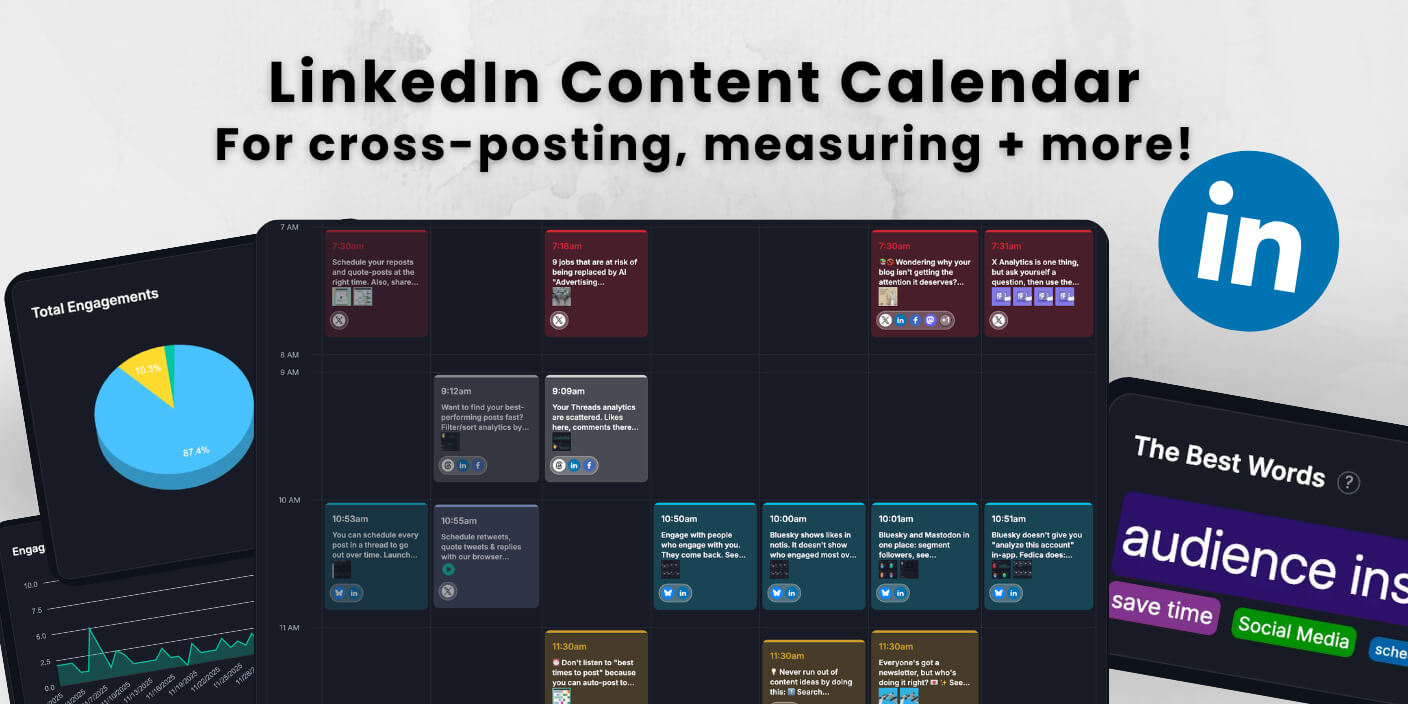
A LinkedIn content calendar helps you organize posts, schedule weeks ahead, and cross-post to multiple platforms with custom content for each. Research shows that professionals who use content calendars post 3x more consistently. According to a survey by verticalresponse, small business owners spend an average of 6 hours per week on social media management, and using scheduling tools can help reduce this time significantly.
After working with hundreds of professionals managing LinkedIn content, we’ve learned that messages have to match the platform. Communities are fragmented more than ever. What works on LinkedIn won’t resonate the same way on Instagram or X.
Fedica’s content calendar gives you visual organization with color-coded topics. RSS feed automation pulls blog posts into your calendar automatically. Cross-posting lets you customize messages for each platform.
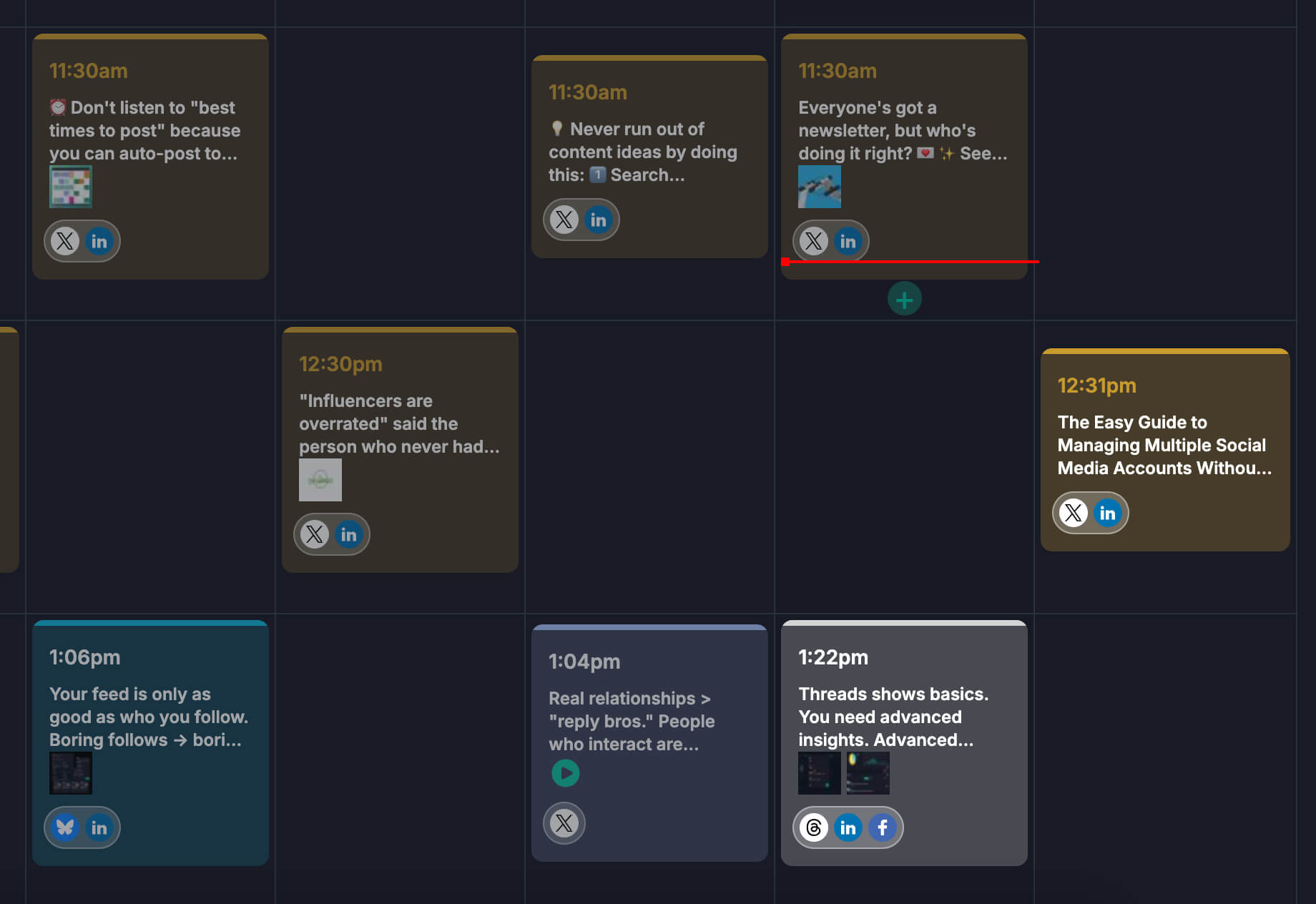
You’ll learn how to set up your LinkedIn content calendar in about 5 minutes. Organize posts by topics or platforms. Use features like bulk uploads, polls, and analytics to save hours every week.
Key Takeaways
- Set up your LinkedIn content calendar in about 5 minutes with Fedica’s visual interface, faster than most alternative platforms that require complex configurations.
- Cross-post to multiple platforms with custom content for each. This is essential because messages have to match the platform since communities are fragmented more than ever.
- Save hours every week with RSS feed automation that pulls blog posts into your calendar automatically and bulk upload capabilities for scheduling dozens of posts at once.
- Organize content visually with color-coded categories by topics or platforms, giving you complete visibility into your content pipeline at a glance.
- Reach more platforms with less work while maintaining platform-specific messaging that resonates with each community. This capability sets Fedica apart from competitor solutions.
Table of Contents
- How to Set Up Your LinkedIn Content Calendar in Fedica: Step-by-Step Guide
- Jumpstart Your Week with a LinkedIn Content Calendar
- LinkedIn Content Calendar Solution: Visual Organization and Cross-Platform Scheduling
- What Makes a LinkedIn Content Calendar Actually Work: Key Features That Matter
- Cross-Posting Your LinkedIn Content Calendar: Custom Content for Each Platform
- How to Organize Your LinkedIn Content Calendar: Grouping by Topics and Platforms
- How to Automate Your LinkedIn Content Calendar: RSS Feed Integration
- Advanced LinkedIn Content Calendar Features: Polls, Videos, Bulk Upload, and More
- LinkedIn Content Calendar Analytics: Track What Actually Works
- Team Collaboration for Your LinkedIn Content Calendar: Approval Workflows and Roles
- Best Practices for Your LinkedIn Content Calendar
- Start Scheduling to Your LinkedIn Content Calendar for Free
How to Set Up Your LinkedIn Content Calendar in Fedica: Step-by-Step Guide
You can set up your LinkedIn content calendar in Fedica in about 5 minutes. Start by connecting your LinkedIn account in Fedica’s dashboard. Then access the visual calendar interface where you can drag and drop posts, organize them by color-coded topics or platforms, and schedule them for specific dates and times.
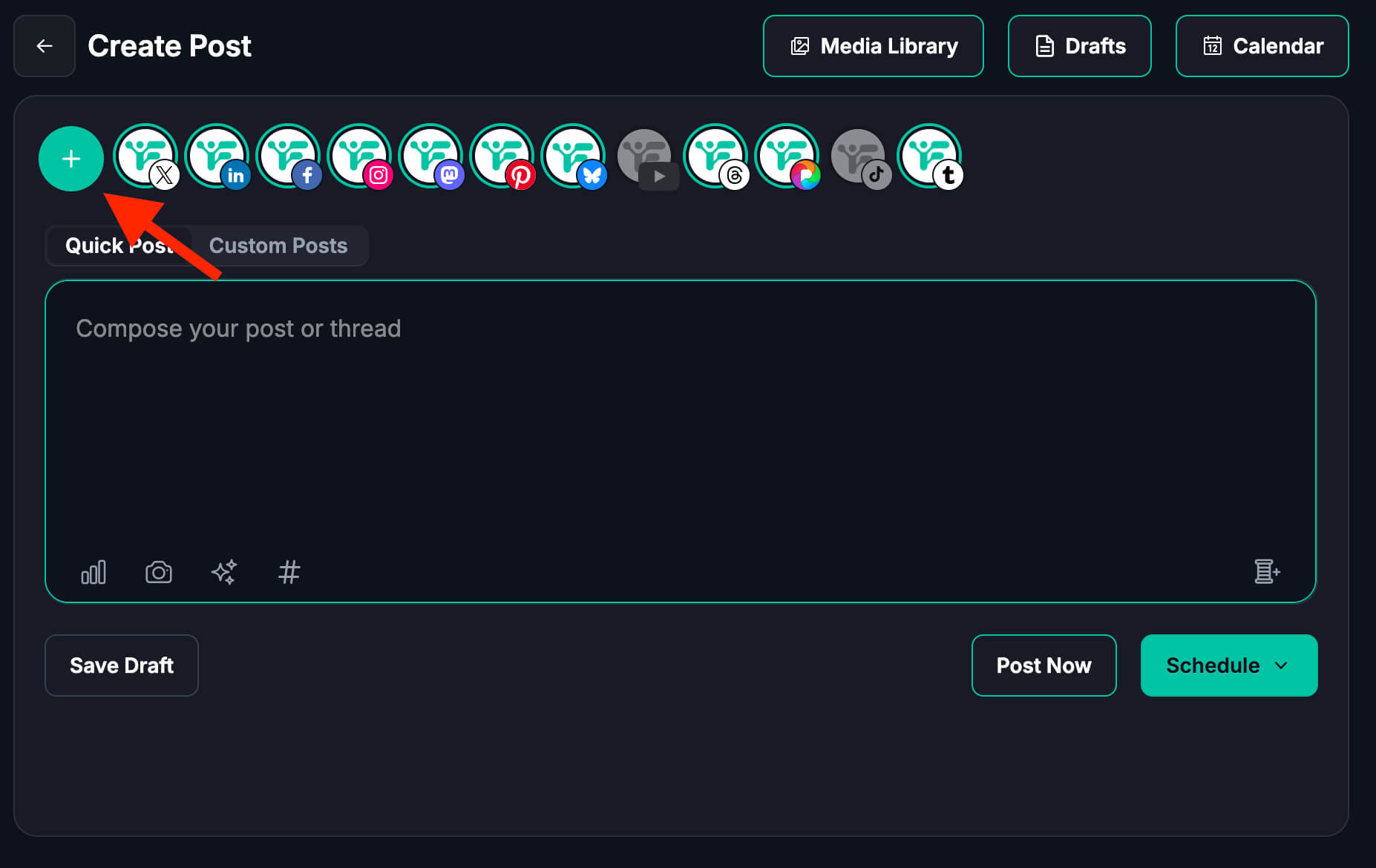
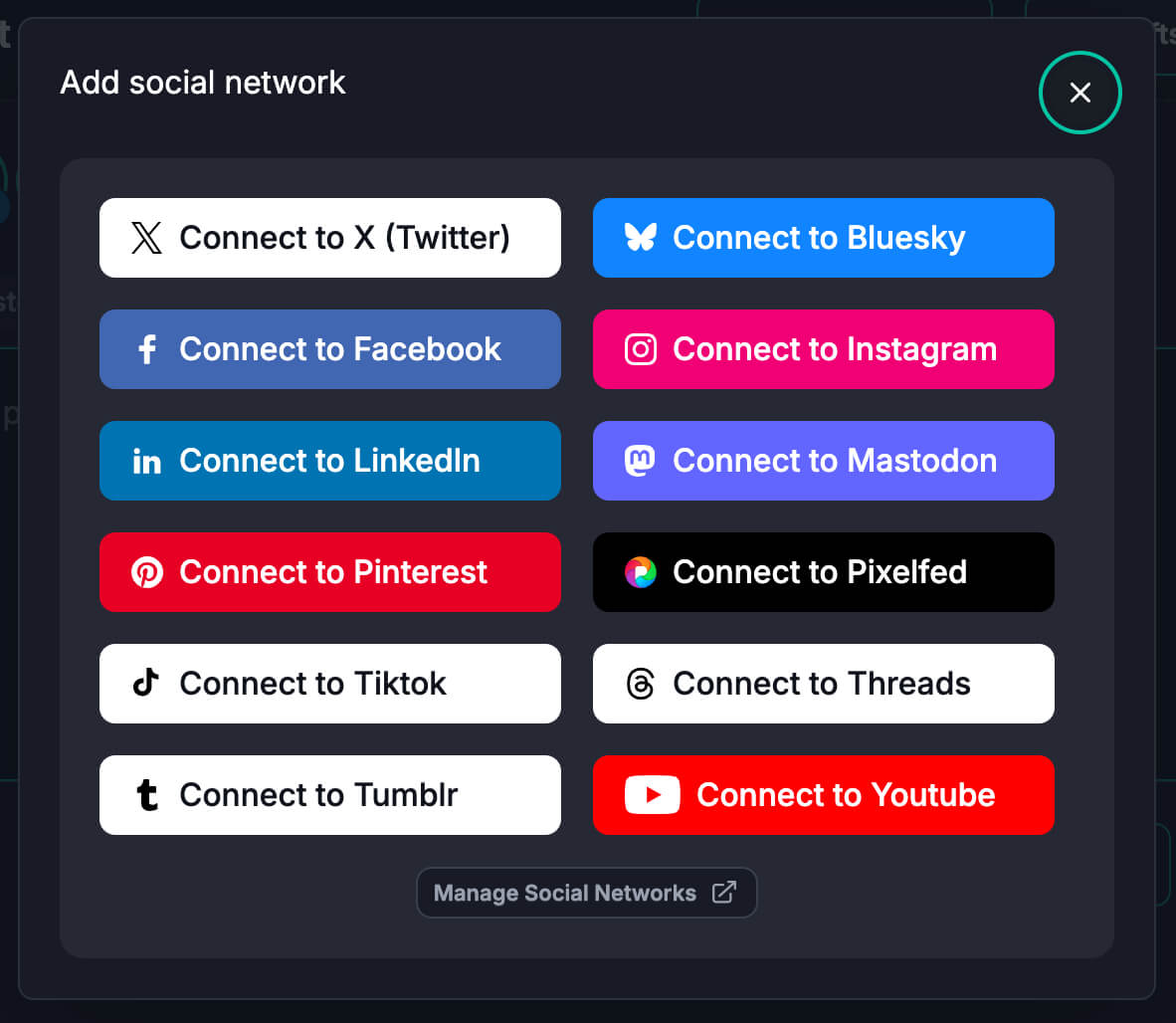
This setup process is faster than most alternative platforms that require complex configurations. Fedica’s LinkedIn content calendar shows all your scheduled posts in one unified view.
Create posts by clicking “Create Post” and selecting LinkedIn as your platform. Add content and media from Fedica’s Library. Set your posting schedule weeks or months in advance.
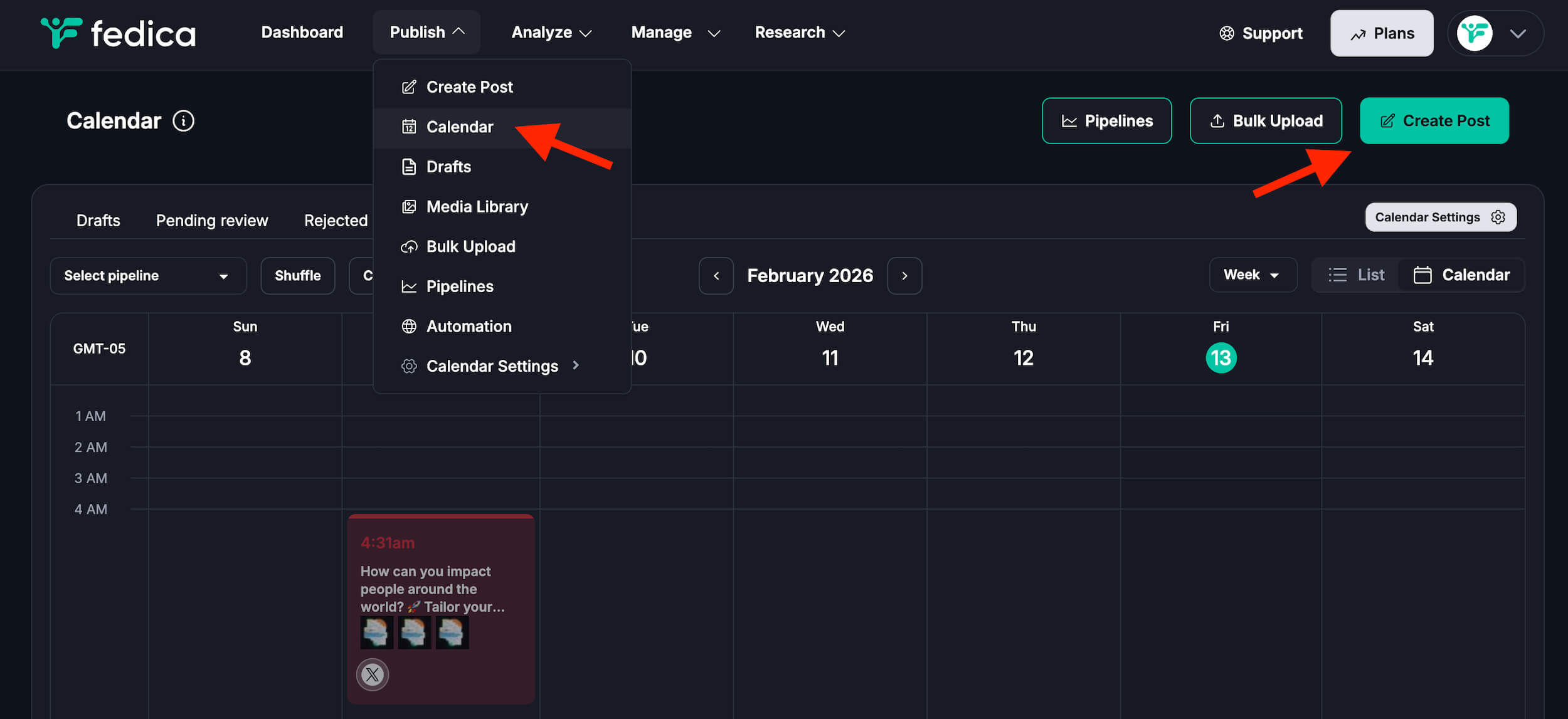
Use the color-coding feature to organize LinkedIn posts by topic. For example, use blue for marketing tips, green for company news, and purple for industry insights. This visual organization helps you maintain a balanced LinkedIn content mix and see your strategy at a glance.
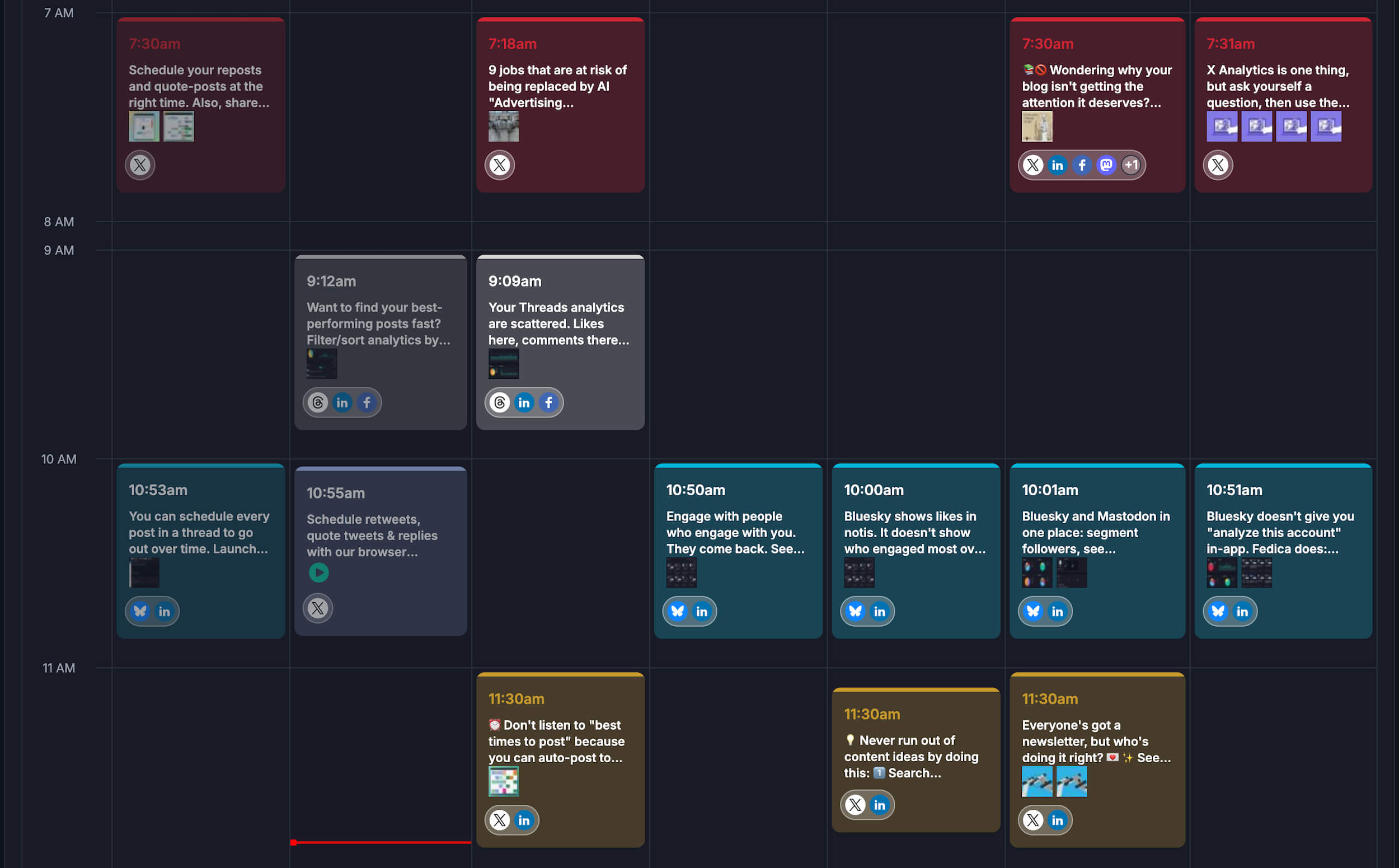
Watch the video breakdown for scheduling to your content calendar in Fedica:
Want to try it yourself?
Schedule 10 posts in your calendar at any given time for free, with unlimited drafts.
Jumpstart Your Week with a LinkedIn Content Calendar
You can set up your LinkedIn content calendar in your first week by following a simple 7-day plan:
- Day 1: Connect your LinkedIn account and explore Fedica’s calendar view. Create 5-7 LinkedIn post drafts covering different topics like industry insights, company updates, and thought leadership, for example.
- Day 2: Organize your drafts using color-coded categories.
- Day 3: Schedule your first week of LinkedIn posts at optimal times.
- Day 4: Set up your RSS feed if you have a blog. This setup takes minutes in Fedica versus hours in other tools.
- Day 5: Review and adjust your scheduled posts.
- Day 6: Monitor your first week’s performance in the analytics dashboard.
By the end of week one, you’ll have a working LinkedIn content calendar with posts scheduled ahead, content organized by topic, and a system that saves you time every week.
LinkedIn Content Calendar Solution: Visual Organization and Cross-Platform Scheduling
Fedica provides a dedicated LinkedIn content calendar. It’s designed for LinkedIn and 11 other platforms. You get visual organization, color-coded content cues, and the ability to plan weeks or months ahead.
LinkedIn’s native platform has no scheduling tool. Fedica’s LinkedIn content calendar lets you drag and drop posts. Organize them by topics or platforms. Schedule them for specific dates and times.
You get all the features LinkedIn doesn’t offer. These include visual calendar interface, cross-platform posting with custom content, RSS feed automation, and comprehensive analytics. All in one dashboard.
Most alternative platforms offer basic scheduling. They lack the visual organization and cross-platform capabilities that Fedica provides. Fedica goes beyond scheduling with advanced features like multi-platform competitor analysis, lead generation search tools, and link click tracking. This makes Fedica the complete solution for LinkedIn content management. Everything you need is in one place. No need to juggle multiple tools.
What Makes a LinkedIn Content Calendar Actually Work: Key Features That Matter
A LinkedIn content calendar that actually works needs three core capabilities:
- Visual organization lets you group content by topics or platforms.
- Cross-platform posting allows custom content for each platform.
- Automation features include RSS feed integration and bulk scheduling.
Organization means you can see your entire LinkedIn content strategy at a glance. Color-coded categories show you exactly what’s scheduled and when. Cross-platform capability lets you post to LinkedIn and other platforms while customizing messages for each. This matters because messages have to match the platform. Communities are fragmented more than ever.
Automation saves hours through RSS feeds that pull blog content automatically. Bulk uploads let you schedule LinkedIn posts at once.
Fedica’s LinkedIn content calendar combines all three capabilities in one dashboard. You can organize LinkedIn posts alongside content for Instagram, X, Threads, and 8 other platforms. Each cross-post can have custom content tailored to that platform’s audience. RSS feeds let you schedule blog content automatically without manual work. Most similar services don’t provide this feature.
Want to test the calendar yourself?
Cross-Posting Your LinkedIn Content Calendar: Custom Content for Each Platform
You can cross-post from your LinkedIn content calendar to multiple platforms. Customize content for each platform using Fedica’s cross-posting feature. Start with your LinkedIn post. Add it to your cross-post queue. Then customize the text, hashtags, tone, and images for Instagram, X, Threads, Facebook, and 8 other platforms.
This customization is essential. Messages have to match the platform. Communities are fragmented more than ever. Identical posts across platforms hurt engagement.
We’ve seen engagement rates drop by 30-40% when professionals copy the same post across all platforms without customization. With Fedica’s cross-posting feature, you can reach 3-4 platforms in the same time it takes to post to one manually. That saves up to 75% of your posting time.
Fedica’s color-coded system shows which platforms each LinkedIn post is scheduled for. You can reach more platforms with less work. Maintain platform-specific messaging that resonates with each community. This approach works better than copying the same post everywhere. Other tools struggle to provide this efficiently.
How to Organize Your LinkedIn Content Calendar: Grouping by Topics and Platforms
Organize your LinkedIn content calendar by creating color-coded categories. Use Fedica’s visual organization system for different topics or platforms. Create categories like “Industry Insights,” “Company Updates,” “Thought Leadership,” or “Product Announcements.” Assign each a color. Fedica automatically color-codes your LinkedIn content calendar.
This visual system helps you see your LinkedIn content mix at a glance. You can spot if you’re posting too much of one topic or not enough of another.
You can also organize by platform. See all your LinkedIn posts together. View your entire cross-platform strategy. The LinkedIn content calendar view shows scheduled posts, drafts, and past LinkedIn content. This gives you complete visibility into your content pipeline.
This organization system removes the uncertainty from LinkedIn content planning. It helps you maintain a balanced, strategic approach to LinkedIn posting. The visual clarity makes it easier than competitor solutions. They often lack this level of organization.
How to Automate Your LinkedIn Content Calendar: RSS Feed Integration
Automate your LinkedIn content calendar by connecting your blog’s RSS feed to Fedica. It automatically pulls new blog posts into your calendar as drafts ready for scheduling. Connect your RSS feed once. Configure how often Fedica checks for new content. Set default scheduling rules. Then new blog posts appear in your LinkedIn content calendar automatically.
When a new post appears, Fedica creates a draft LinkedIn post with the title, excerpt, and link. You can review it. Customize it with LinkedIn-specific hashtags. Adjust the tone. Schedule it for the best time.
This hands-free scheduling saves hours every week. Manual methods used by alternative platforms take much longer. Your LinkedIn content calendar stays filled with fresh content without daily manual work. Competitor solutions typically require you to do this manually. Instead of copying and pasting blog posts every day, Fedica does the heavy lifting for you.
Want to see how RSS feeds can make scheduling hands-free?
Advanced LinkedIn Content Calendar Features: Polls, Videos, Bulk Upload, and More
Fedica’s LinkedIn content calendar includes advanced features like Library, poll scheduling, video publishing, bulk uploads, and AI optimization. LinkedIn doesn’t offer some of these capabilities natively. Many competitor solutions charge extra for them, too.
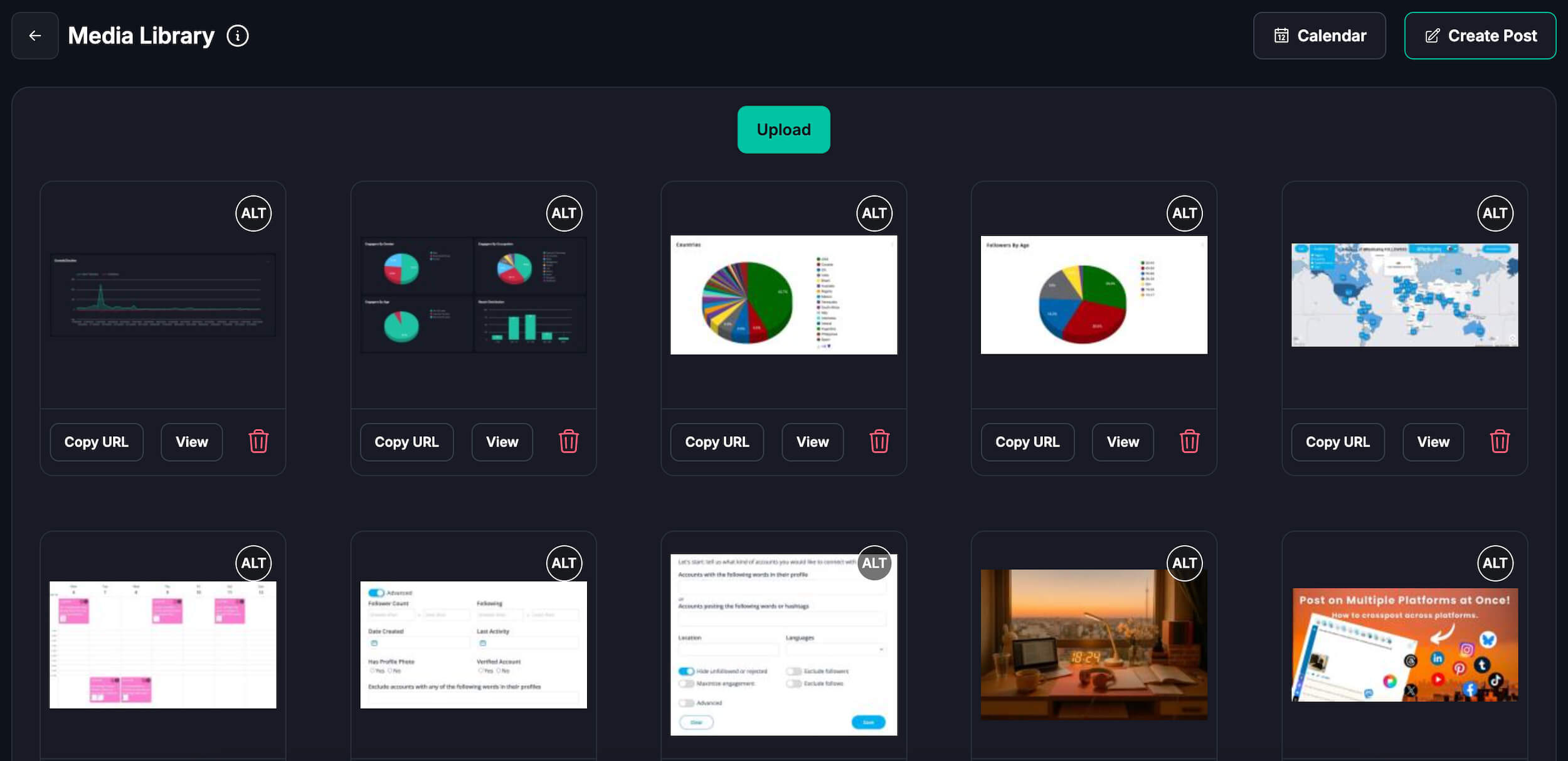
Fedica’s Library stores all your images and videos. This makes it easy to reuse content across multiple LinkedIn posts. You can access your media assets quickly.
You can schedule LinkedIn polls directly from your LinkedIn content calendar. Create questions with up to four options and set posting times. Publish videos by uploading them to Fedica’s Library. Schedule them alongside your text posts.
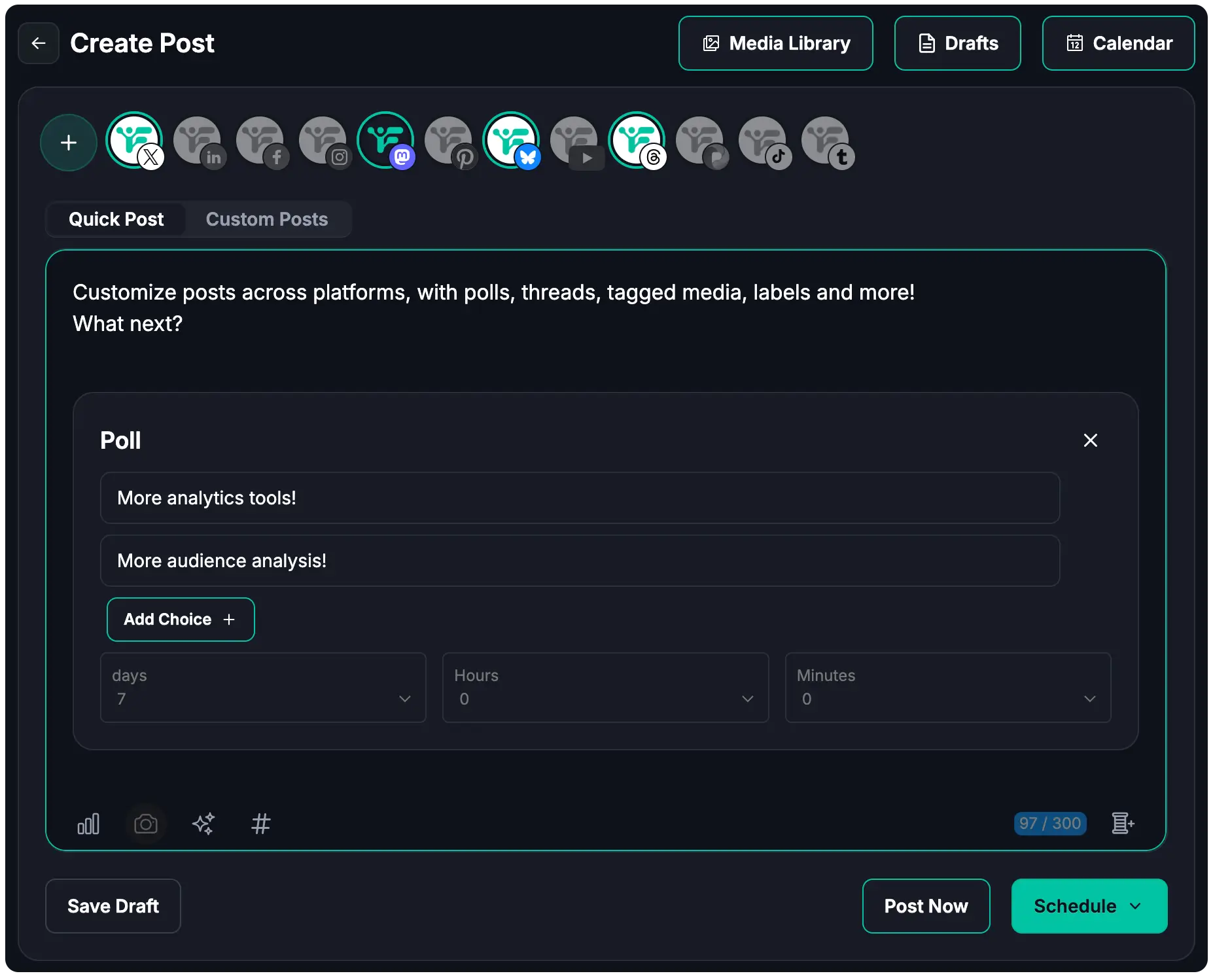
Use bulk upload to add dozens of LinkedIn posts at once from a CSV file. This saves hours of manual entry that other LinkedIn content calendar tools require. Fedica’s AI Optimizer helps improve your LinkedIn post text. It improves engagement, clarity, tone, and grammar. Most alternative platforms don’t include this feature.
These advanced features turn your LinkedIn content calendar into a complete LinkedIn publishing hub. Everything you need to plan, create, and schedule LinkedIn content is in one place. Other tools scatter features across multiple screens.
LinkedIn Content Calendar Analytics: Track What Actually Works
You can track your content calendar performance using Fedica’s Analytics dashboard for Company Page LinkedIn analytics. It provides deeper insights than most LinkedIn content calendar tools. The dashboard includes historical time frame selection, too. You can analyze performance over any period: daily, weekly, monthly, or custom date ranges.
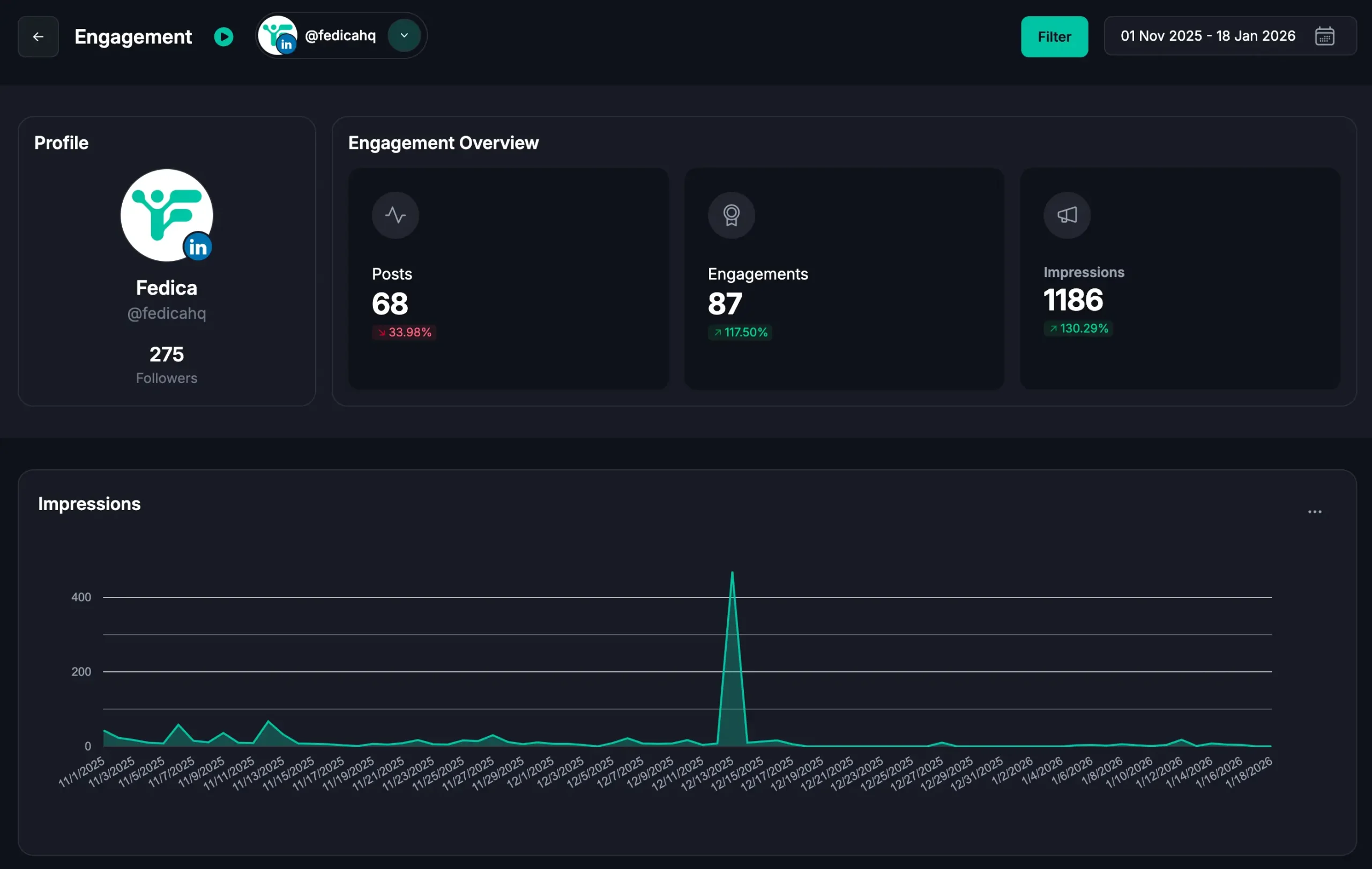
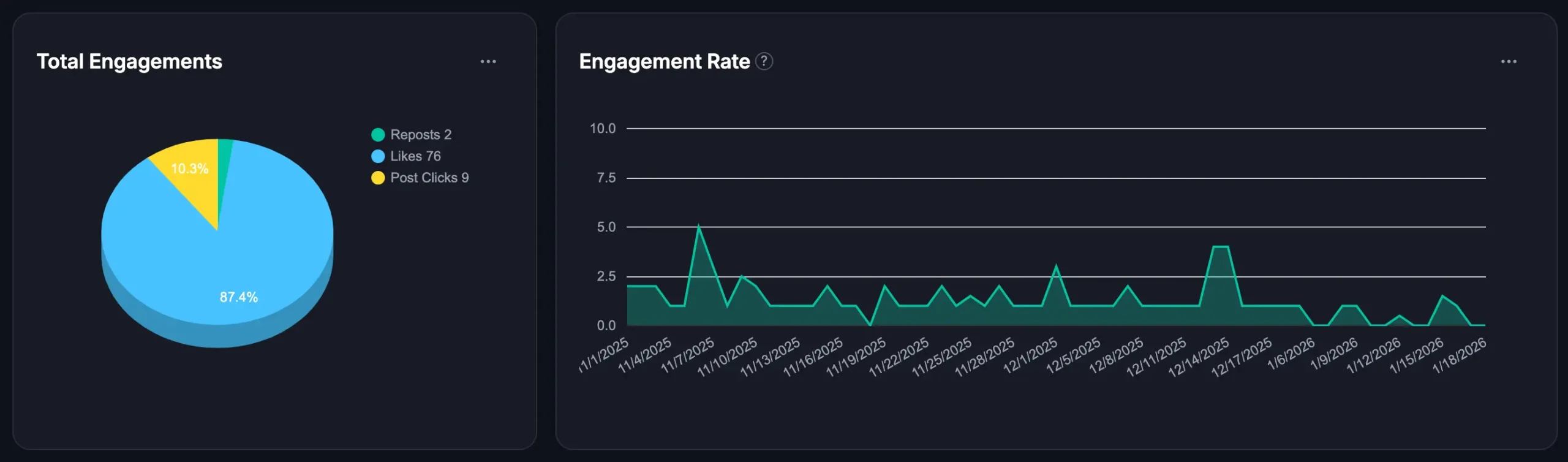
Filter analytics by content pipeline queue, keywords in LinkedIn posts, engagement types, and sentiment. See follower count changes and engagement overviews. View post count, engagements count, and impressions count. View detailed line charts for impressions, engagements, and posts over time. An engagement rate line chart shows how your engagement rate trends.
The dashboard includes a total engagements pie chart breakdown. It shows likes, post clicks, comments, shares, and other engagement types at a glance. Top posts analysis reveals your best-performing LinkedIn content. Sortable metrics include replies, reposts, likes, link clicks, and impressions count. You can sort by any engagement metric to identify what drives results. Use competitor analysis tools to benchmark your LinkedIn performance against industry standards.
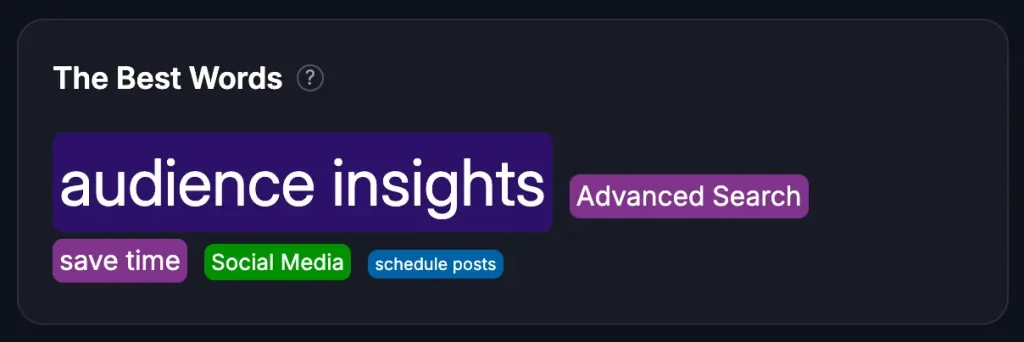
Best Words and Top Topics analytics show which words and topics drive the most engagement in your LinkedIn content calendar. These insights are often buried in basic reports by competitor solutions. Export your analysis to CSV for deeper reporting. This data helps you refine your LinkedIn content calendar strategy. Post more of what works and less of what doesn’t. Other tools can’t match this precision.
Team Collaboration for Your LinkedIn Content Calendar: Approval Workflows and Roles
Manage team collaboration for your LinkedIn content calendar using Fedica’s approval workflows, roles and permissions, and profile management features. Set up approval workflows so team members can create LinkedIn posts. Managers must approve them before scheduling.
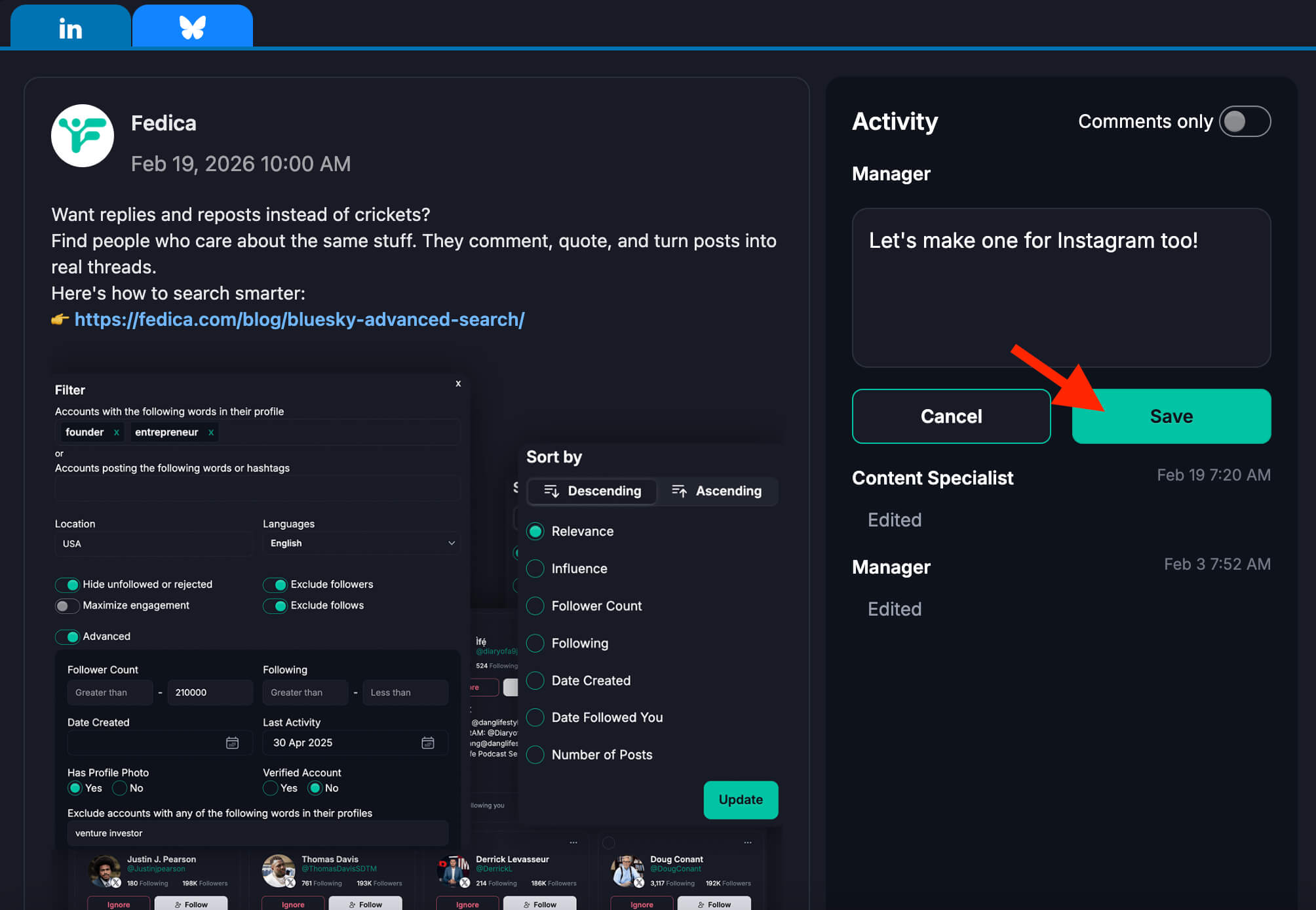
Assign roles and permissions. Some team members can only create drafts. Others can schedule posts. Admins control everything.
Use collab features to share drafts and gather feedback. Ensure every LinkedIn post is polished before it goes live. Profile management lets you manage multiple LinkedIn profiles from one LinkedIn content calendar dashboard. This is perfect for agencies or businesses with multiple brands.
These collaboration tools ensure your LinkedIn content calendar maintains quality and brand consistency. This works even when multiple people are creating and scheduling LinkedIn content. This capability sets Fedica apart from other LinkedIn content calendar tools. They limit team collaboration.
Best Practices for Your LinkedIn Content Calendar
Follow these best practices to maximize your LinkedIn content calendar’s effectiveness:
- Customize content for each platform.
When cross-posting, adapt messages for each platform since communities are fragmented more than ever. Fedica’s cross-posting feature makes this easy. - Review analytics weekly.
Check your dashboard to identify top-performing content and refine your strategy based on what drives engagement. - Use color-coding from the start.
Organize content by categories to maintain visual organization and a balanced content mix across topics. - Set up your RSS feed.
Automate content scheduling and save hours of manual work. - Plan your content mix.
Cover different topics and goals while maintaining a consistent posting frequency you can sustain. - Use approval workflows for teams.
If you work with a team, use Fedica’s approval workflows to ensure quality and brand consistency.
These practices help your LinkedIn content calendar become a time-saving tool that drives consistent engagement. Competitor solutions often lack these features.
Start Scheduling to Your LinkedIn Content Calendar for Free
Your LinkedIn content calendar will help you maintain consistent posting. Save hours every week. Reach more platforms while ensuring your messages match each platform’s community. Academic research shows that posting frequency positively influences brand engagement on social media. They post 3x more consistently than those posting manually.
Beyond content scheduling, Fedica offers multi-platform competitor analysis to identify content opportunities and lead generation tools to grow your network.
Frequently Asked Questions
How do I create a LinkedIn content calendar?
Create a LinkedIn content calendar by connecting your LinkedIn account to Fedica, then using the visual calendar view to organize posts by topics or platforms. You can drag and drop posts, use color-coding to categorize content, and schedule posts weeks or months in advance. Fedica’s LinkedIn content calendar setup takes about 5 minutes, faster than most alternative platforms.
What should be included in a LinkedIn content calendar?
A LinkedIn content calendar should include content type (text, video, polls, carousels), topics or themes, posting dates and times, target platforms, hashtags, and CTAs. Fedica’s calendar lets you organize all these elements visually with color-coded categories, making it easy to see your content mix at a glance.
Can I schedule LinkedIn posts in advance?
Yes, you can schedule LinkedIn posts weeks or months in advance using Fedica’s LinkedIn content calendar. Unlike LinkedIn’s native platform which has no scheduling tool, Fedica lets you schedule posts for specific dates and times, plan long-term content strategies, and maintain consistent posting without daily manual work.
What tools can I use for a LinkedIn content calendar?
You can use Fedica’s LinkedIn content calendar, which offers visual organization, cross-platform posting, RSS feed automation, bulk uploads, and analytics. These are all features LinkedIn doesn’t provide natively. For a detailed comparison of social media management tools, see our best social media manager tools comparison guide. Other tools include Google Sheets templates, Notion templates, or basic scheduling platforms, but they lack Fedica’s comprehensive cross-platform and automation capabilities.
Can I cross-post LinkedIn content to other platforms?
Yes, Fedica’s cross-posting feature lets you post LinkedIn content to multiple platforms with custom content for each. Start with your LinkedIn post, then customize the text, hashtags, tone, and images for Instagram, X, Threads, Facebook, and 8 other platforms. This ensures messages match each platform since communities are fragmented more than ever.
Does LinkedIn have a built-in content calendar?
No, LinkedIn doesn’t have a built-in content calendar feature. Unlike other social media platforms, LinkedIn expects you to post manually or use third-party tools like Fedica. Fedica’s LinkedIn content calendar fills this gap with visual organization, scheduling, and cross-platform capabilities LinkedIn doesn’t offer.
How do I automate LinkedIn content scheduling?
Automate LinkedIn content scheduling using Fedica’s RSS feed integration. Connect your blog’s RSS feed, and new posts automatically appear in your LinkedIn content calendar as drafts. You can review, customize, and schedule them, saving hours of manual work. Fedica also supports bulk uploads from CSV files for long-term automation.
How do I organize LinkedIn content by topics?
Organize LinkedIn content by topics using Fedica’s color-coding system. Create categories like “Industry Insights,” “Company Updates,” or “Thought Leadership,” assign each a color, and Fedica automatically color-codes your calendar. This visual system helps you see your content mix and maintain a balanced strategy across different topics.