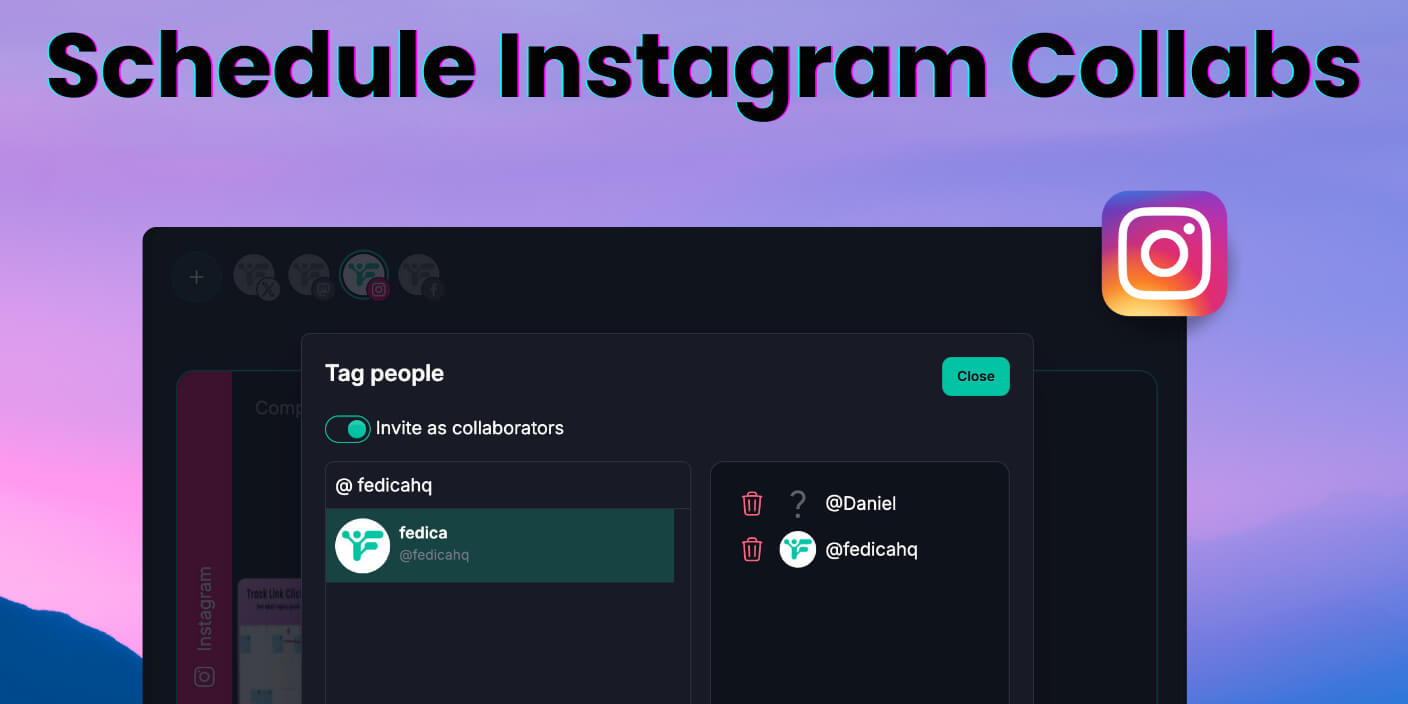
How to do a collab post on Instagram: create your post or Reel, tap Tag people, then Invite collaborators, add the other account, and post. The post shows on both people’s feeds and shares likes and comments once they accept.
You’ll get the exact in-app steps below, plus how to accept an invite, add a collaborator after posting if you forgot, and how to plan the post in a free Instagram scheduler so it goes live when you want. At Fedica we help creators and brands plan content across 12 platforms. Here’s how to do a collab post and fit it into your workflow.
Key Takeaways
- Tap Tag people → Invite collaborators before Share to create a collab post; once they accept, the post appears on both feeds and shares engagement.
- Forgot to add someone? Edit the post, tap Tag people → Invite collaborators, and add them without deleting or reposting.
- Plan and schedule the post in a scheduler so you can schedule later automatically; add collaborators through Fedica’s scheduler and the invite goes out with the post.
- Fedica collabs only work when Instagram is connected through Facebook. If you added Instagram to Fedica without the Facebook connection, you won’t see the collab option (tagging still works). Add Instagram via “connection through Facebook” in Manage social networks to use collabs. This confuses a lot of people, we spell it out below.
- Use one content calendar across 12 platforms (e.g. Fedica) to slot collab posts alongside the rest of your content and get best-time suggestions.
- Can’t find Invite collaborators? Switch to a Business or Creator account, set your account to public, and update the Instagram app.
Table of Contents
- What is an Instagram collab post?
- How to do a collab post on Instagram (Simple Steps)
- How to schedule a collab post on Instagram with Fedica (Setup & Step-by-Step)
- How to accept a collab invite on Instagram
- Why do a collab post on Instagram?
- Can you add a collaborator to an Instagram post after posting?
- Why can’t I do a collab post on Instagram? (troubleshooting)
What is an Instagram collab post?
An Instagram collab post is a single feed post or Reel that two or more accounts co-author. One person creates the post and invites another account (or up to five) as collaborators. When they accept, the post appears on everyone’s profile grid and in their followers’ feeds.
Likes, comments, and saves are shared across all collaborators, and everyone’s name shows in the post header. Each collaborator can view the post’s Insights (likes, saves, comments) from their own account. It’s different from tagging: a tag doesn’t put the post on the other person’s grid; a collab does.
How to do a collab post on Instagram (Simple Steps)
Two ways to do it: in the Instagram app, or in Fedica’s scheduler. Below are the steps for each.
In the Instagram App on Desktop
Create your post or Reel, then tap Tag people → Invite collaborators before you tap Share. Search for the account, tap their profile, tap Done, then tap Share. Your collaborator gets a notification to accept; once they do, the post appears on both feeds. Details:
Step 1: Create your post or Reel
Open Instagram, tap the + or Create, and choose Post or Reel. Add your photo, video, or carousel and any filters or edits. Write your caption and add location or hashtags if you want. Don’t tap Share yet.
Step 2: Tap “Tag people” then “Invite collaborators”
On the screen where you set caption and details, tap Tag people. You’ll see options like Add tag and Invite collaborators. Tap Invite collaborators (not Add tag; that won’t put the post on their grid).
Step 3: Search and add your collaborator(s)
Use the search bar to find the account you want. Tap their profile to add them. You can add more than one (Instagram allows multiple collaborators per post). Tap Done when you’re finished.
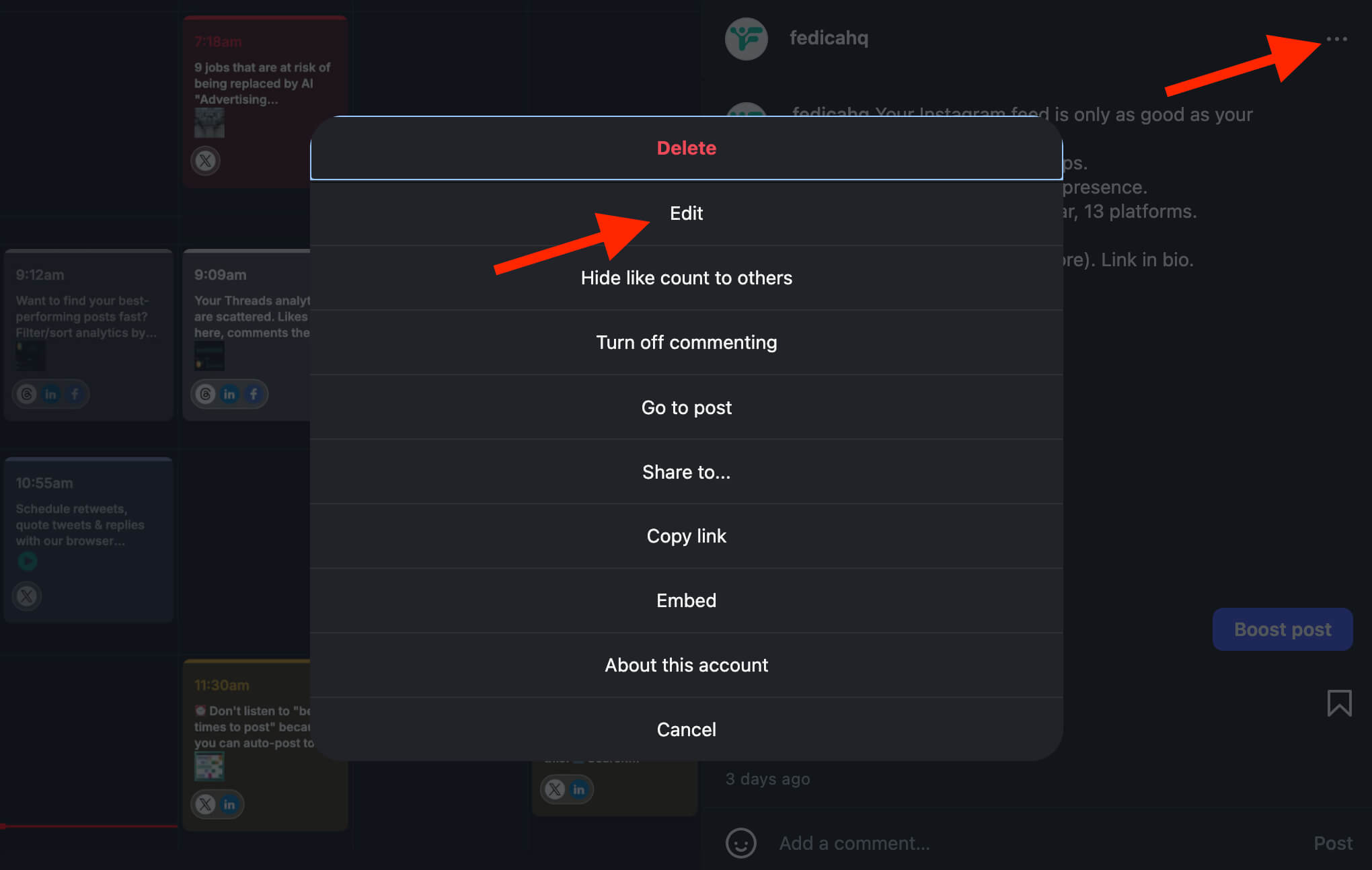
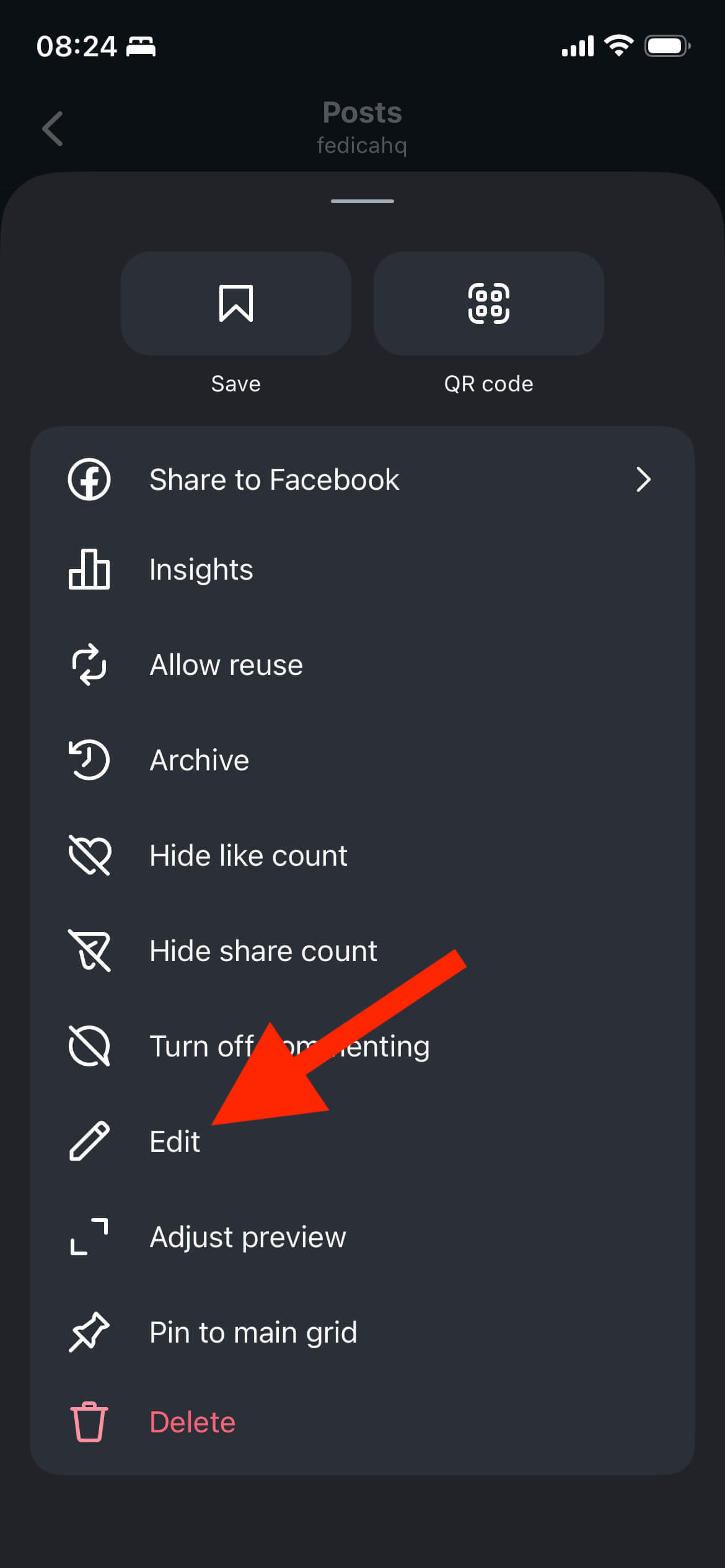
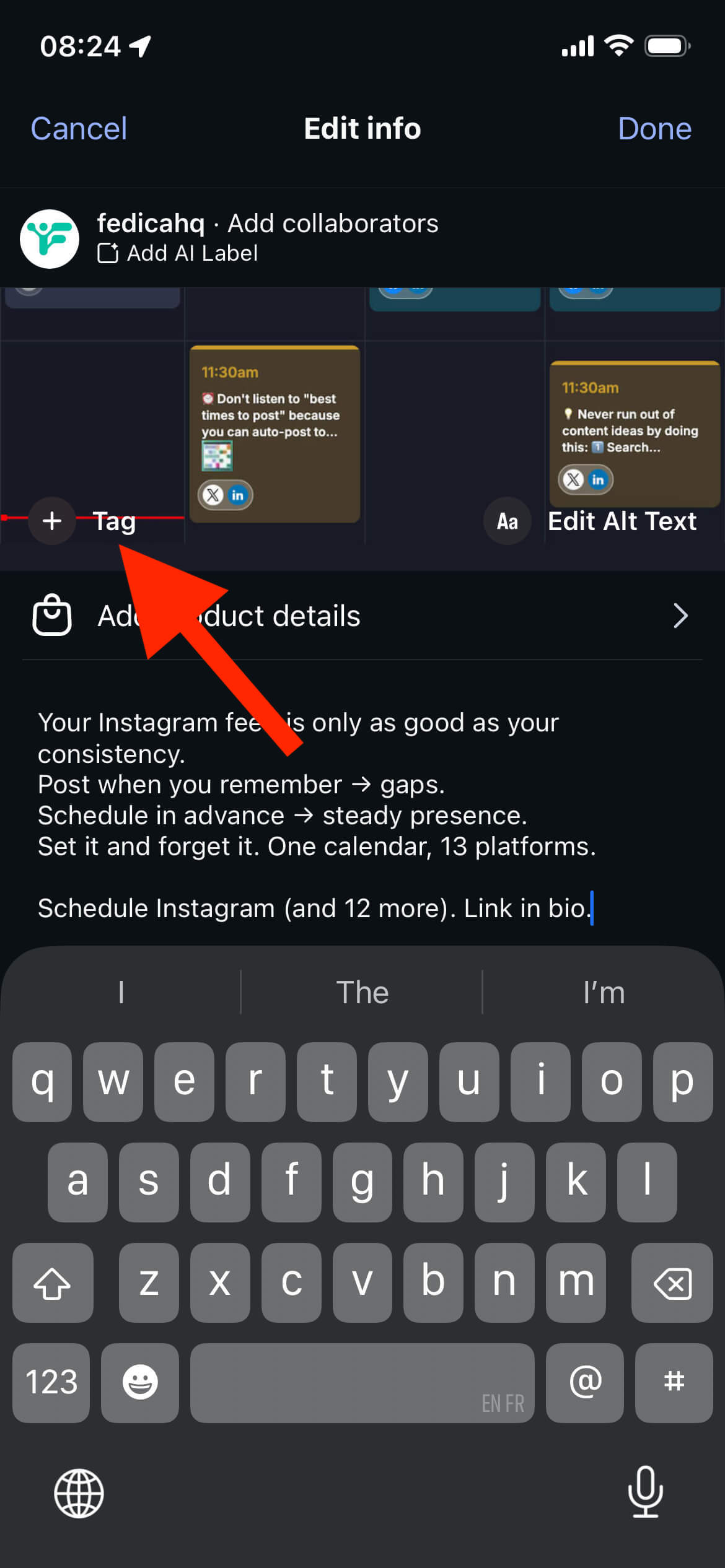
If you posted the post already, then edit the post and add tags for people:
Step 4: Post and wait for acceptance
Tap Share to publish so the post goes live on your profile right away. Your collaborator gets a notification in DMs and in Activity. Until they accept, the post only appears on your feed; once they tap Accept, it appears on their grid too and engagement is shared.
In the Instagram App on Mobile
Create your post or Reel, then tap Tag people → Invite collaborators before you tap Share. Search for the account, tap their profile, tap Done, then tap Share. Your collaborator gets a notification to accept; once they do, the post appears on both feeds. Details:
Step 1: Create your post or Reel
Open Instagram, tap the + or Create, and choose Post or Reel. Add your photo, video, or carousel and any filters or edits. Write your caption and add location or hashtags if you want. Don’t tap Share yet.
Step 2: Tap “Tag people” then “Invite collaborators”
On the screen where you set caption and details, tap Tag people. You’ll see options like Add tag and Invite collaborators. Tap Invite collaborators (not Add tag; that won’t put the post on their grid).
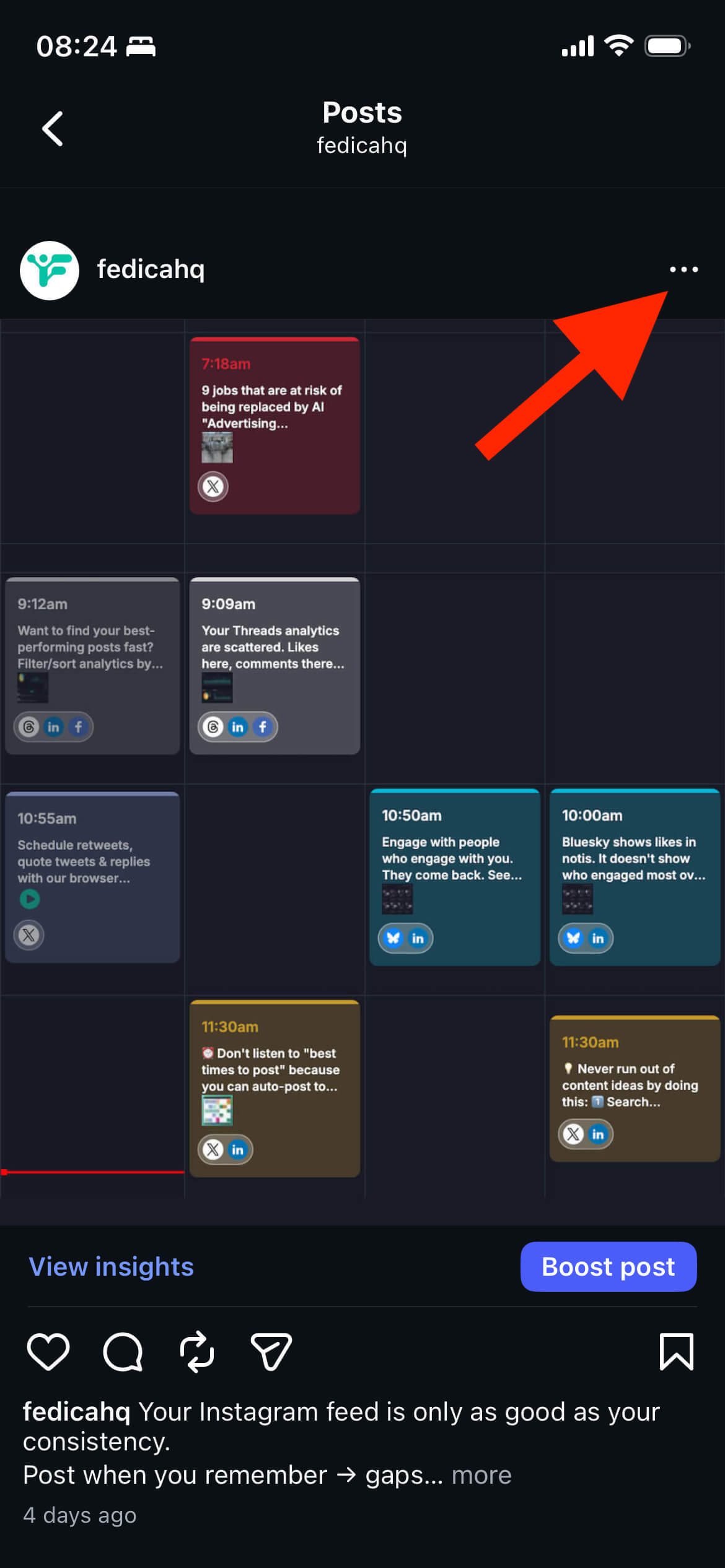
If you posted the post already, then edit the post and add tags for people:
Step 3: Search and add your collaborator(s)
Use the search bar to find the account you want. Tap their profile to add them. You can add more than one (Instagram allows multiple collaborators per post). Tap Done when you’re finished.
Step 4: Post and wait for acceptance
Tap Share to publish so the post goes live on your profile right away. Your collaborator gets a notification in DMs and in Activity. Until they accept, the post only appears on your feed; once they tap Accept, it appears on their grid too and engagement is shared.
In Fedica
Collabs in Fedica only work when your Instagram is connected through Facebook.
- Note: See How to Link Instagam Business Account to Facebook Page, then add your Instagram account through Facebook’s linked account option when adding a Instagram account to Fedica.
- In other words, Add an Instagram account to Fedica, → then choose the Facebook-Link option, → then follow the steps, and finally → choose your Instagram Business Account to use with Fedica.
To add a collaborator in Fedica:
1. Create a post and upload a media file to the scheduler.
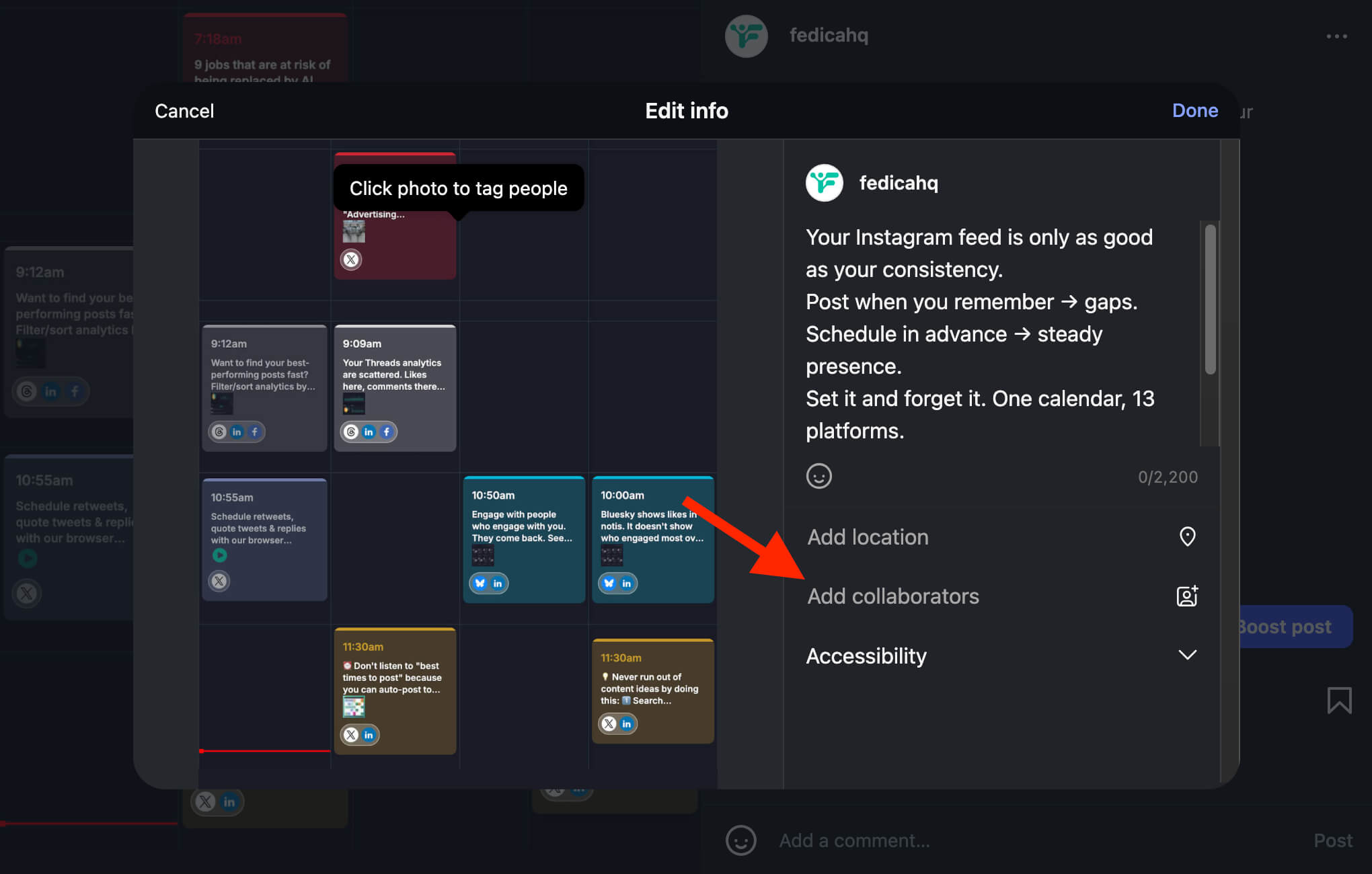
2. Once media is attached, click the collaboration button (👤+).
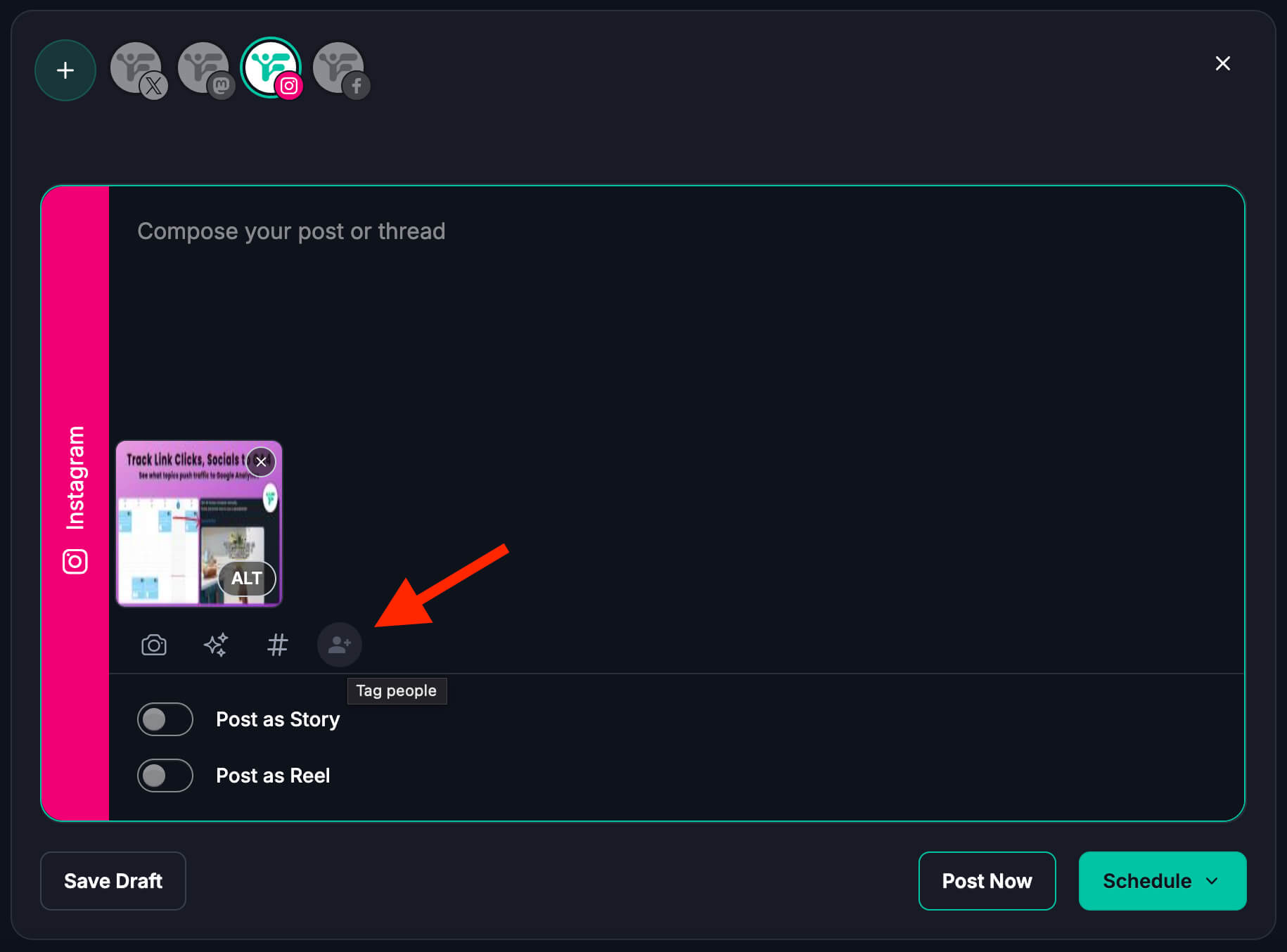
3. Type the collaborator’s whole username (case sensitive). If they appear in the list, they’re business accounts. If they don’t appear and it says “Please verify it exists,” the account may be personal or the username may be wrong, double-check the username and it can still work.
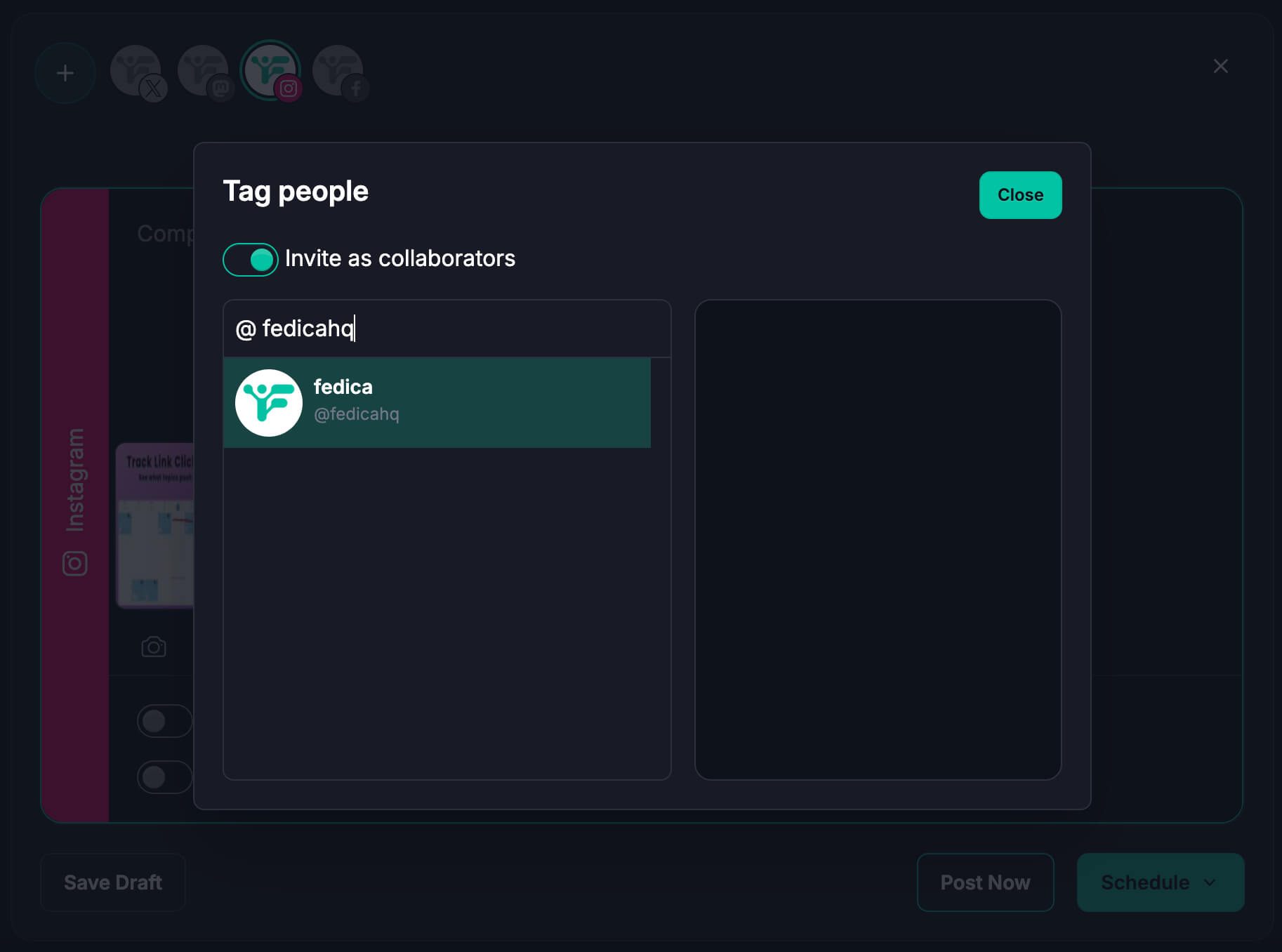
4. Select the account. Even if it shows as unknown, it will work if the username is correct:
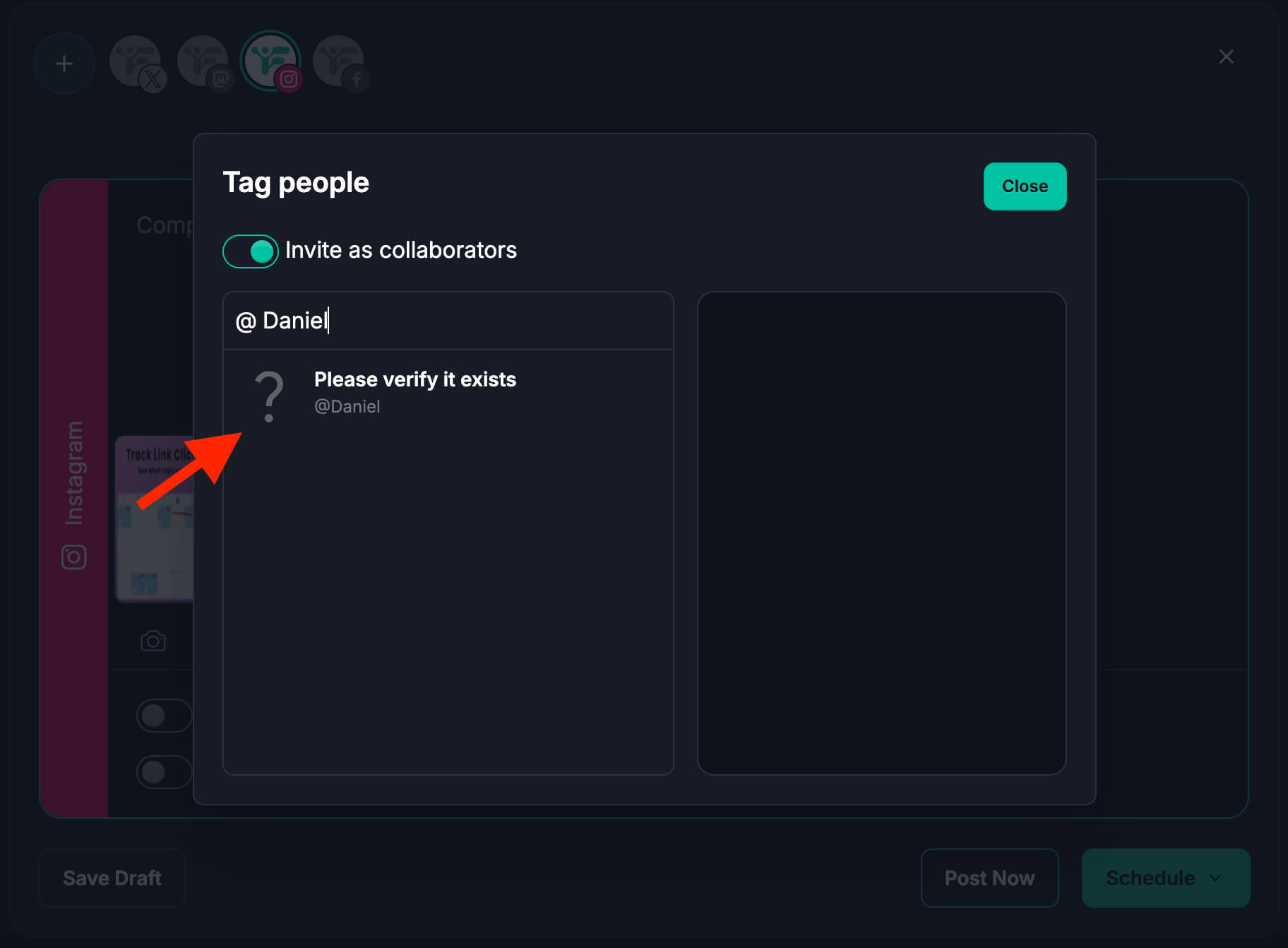
Tagging in Fedica: Type @ then their whole username and it will show up ONLY IF the account is a business account. Tagging works on both Instagram-only and Facebook-connected Instagram accounts, but adding collaborators only works if you connected your Instagram account through the Facebook connection option.
How to schedule a collab post on Instagram with Fedica (Setup & Step-by-Step)
Fedica’s content calendar works across 14 platforms, so you slot your collab post alongside the rest of your content in one place (and crossposting Instagram to Threads or other networks when you want). Create the post, set the date and time (or use best times to post for your audience), and save.
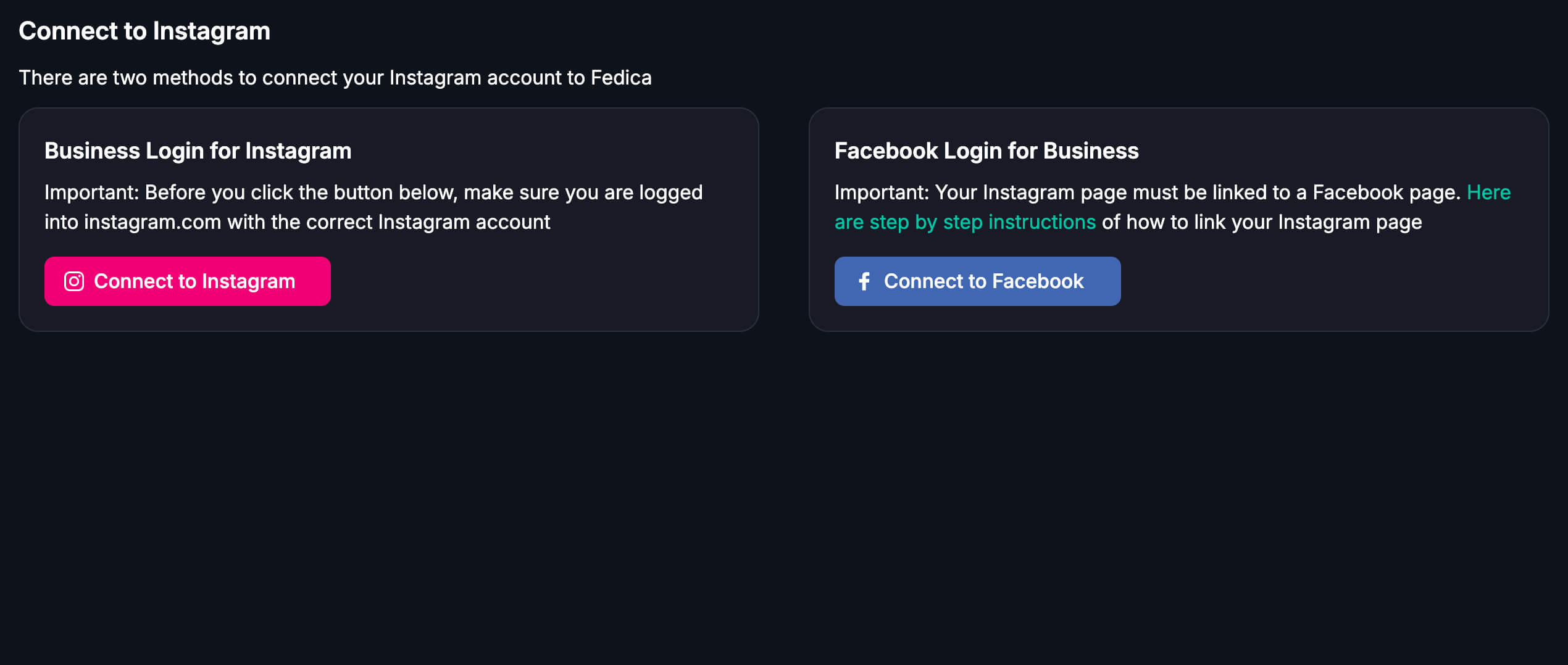
Collabs in Fedica only work when your Instagram is connected to Fedica through Facebook. You can add an Instagram account to Fedica without linking it to Facebook, but in that case the collaboration option is not available, and the collab button isn’t there.
Tagging works for both Instagram-only accounts and Facebook-connected Instagram accounts.
How to get Instagram Collabs scheduling feature in Fedica (If you don’t see it):
To get collabs, add your Instagram to Fedica by choosing the connection through Facebook option when you add the account (Manage social networks):
- Click the “+” button in the scheduler.
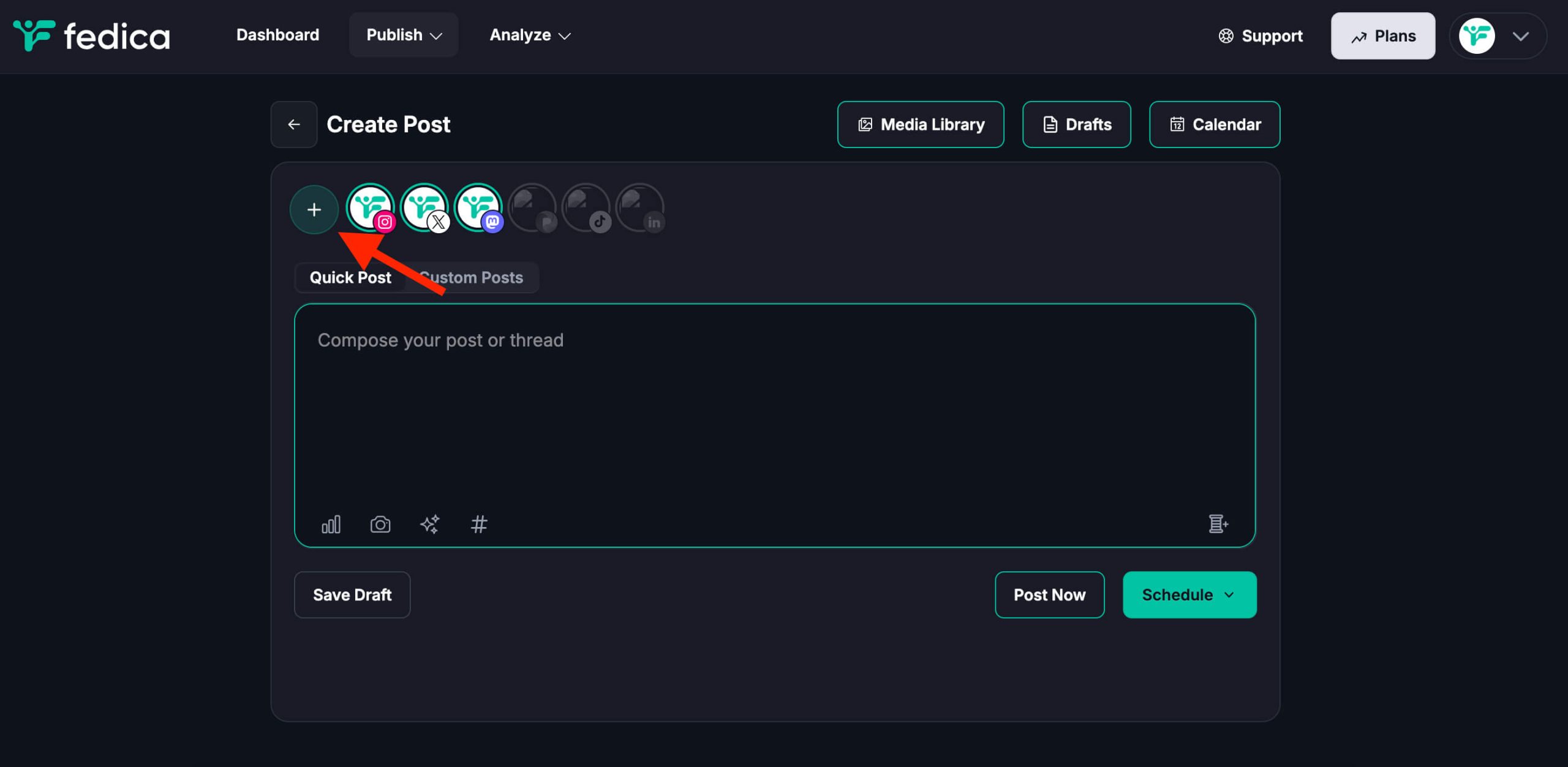
- Select “Instagram”.
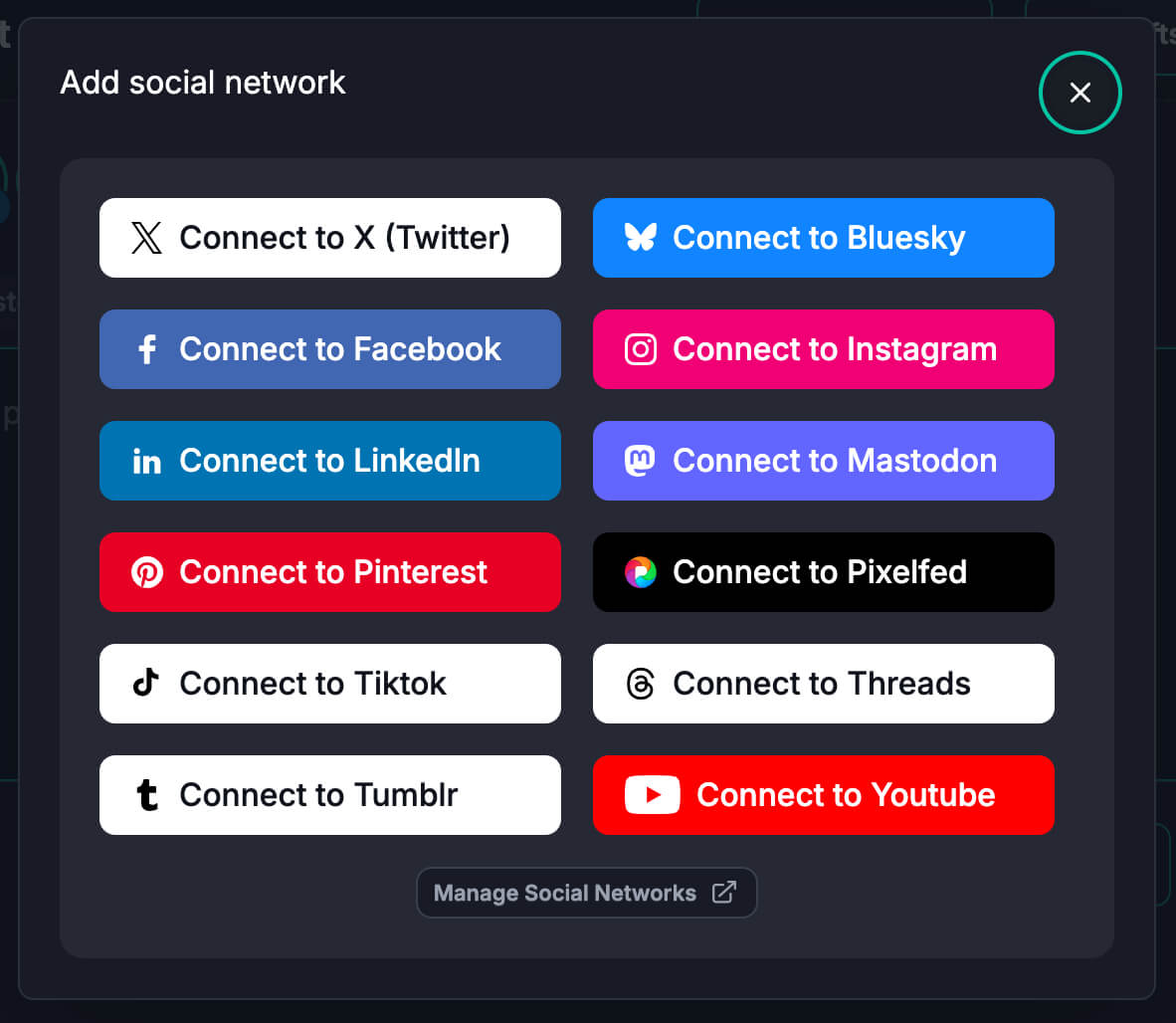
- Select “Connet to Facebook” If you would like Collabs features in Fedica’s scheduler.
Note: You need to link an Instagram Business account to a Facebook Page first.
- See how to link your Instagram account to your Facebook Page.
- Switch Instagram to a Professional account (e.g. Content creator if unsure),
- Create a Facebook Business Page,
- Connect that Page to your Instagram,
- Sign in to each account in your browser,
- Then, in Fedica, add Instagram via the Facebook connection and select that business account.
- Add a collaborator (👤+, type full username, case sensitive). We built the calendar so you can schedule ahead of time, not just get a reminder, and you can automate Instagram posts to Threads and other platforms from the same workflow.
- Select “Invite as collaborators” and search the name (Case Sensitive). If not, they will be tagged like regular tagged accounts in an image, not a collaborator posts that shows on their feeds as well.
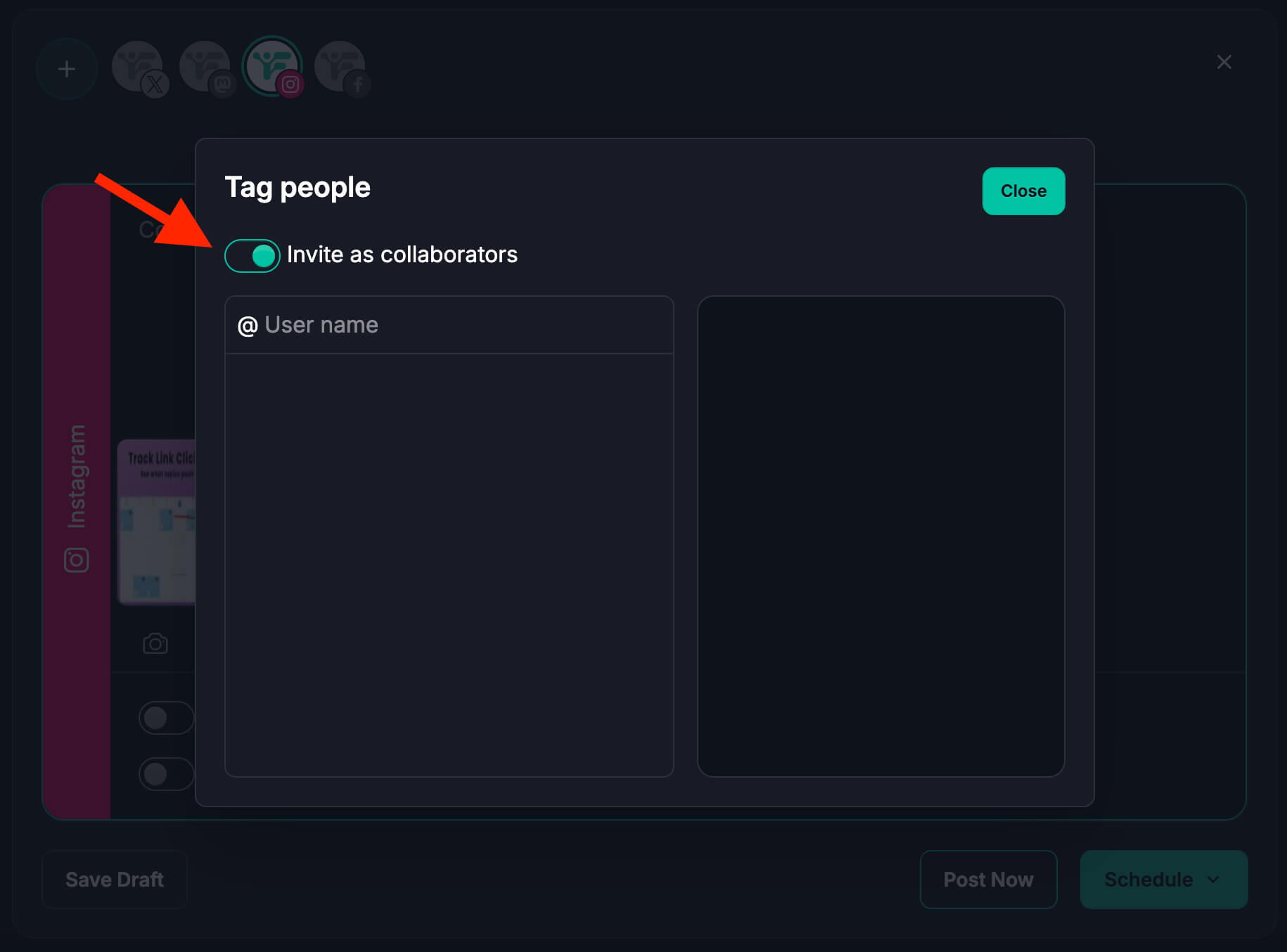
- If the name is correct AND the account is a business account on Instagram, then it will appear here. (This is an Instagram quirk we work around!).
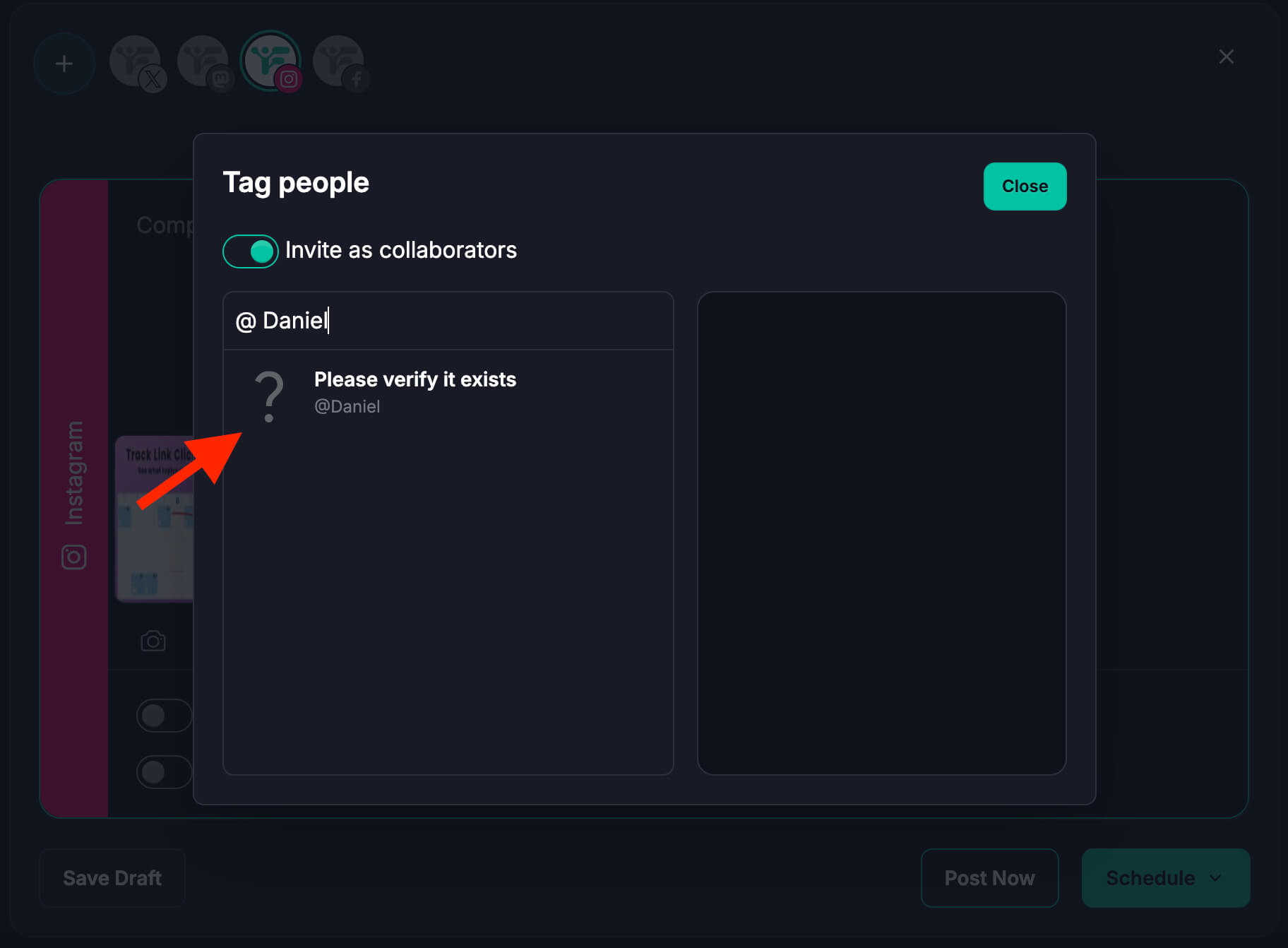
- If the name is incorrect or not, it will show “Please verify it exists”. Just double check, or copy their handle (with capital letters and lowercase letters since it’s case sensitive), and add them anyway.
- Note: Their name and image will only show up if their account is a business account. If they have a personal account, it will show to “Please verify it exists” and you can double check the username, but it will work and successfully tag the user as a collaborator if they are a business or not.
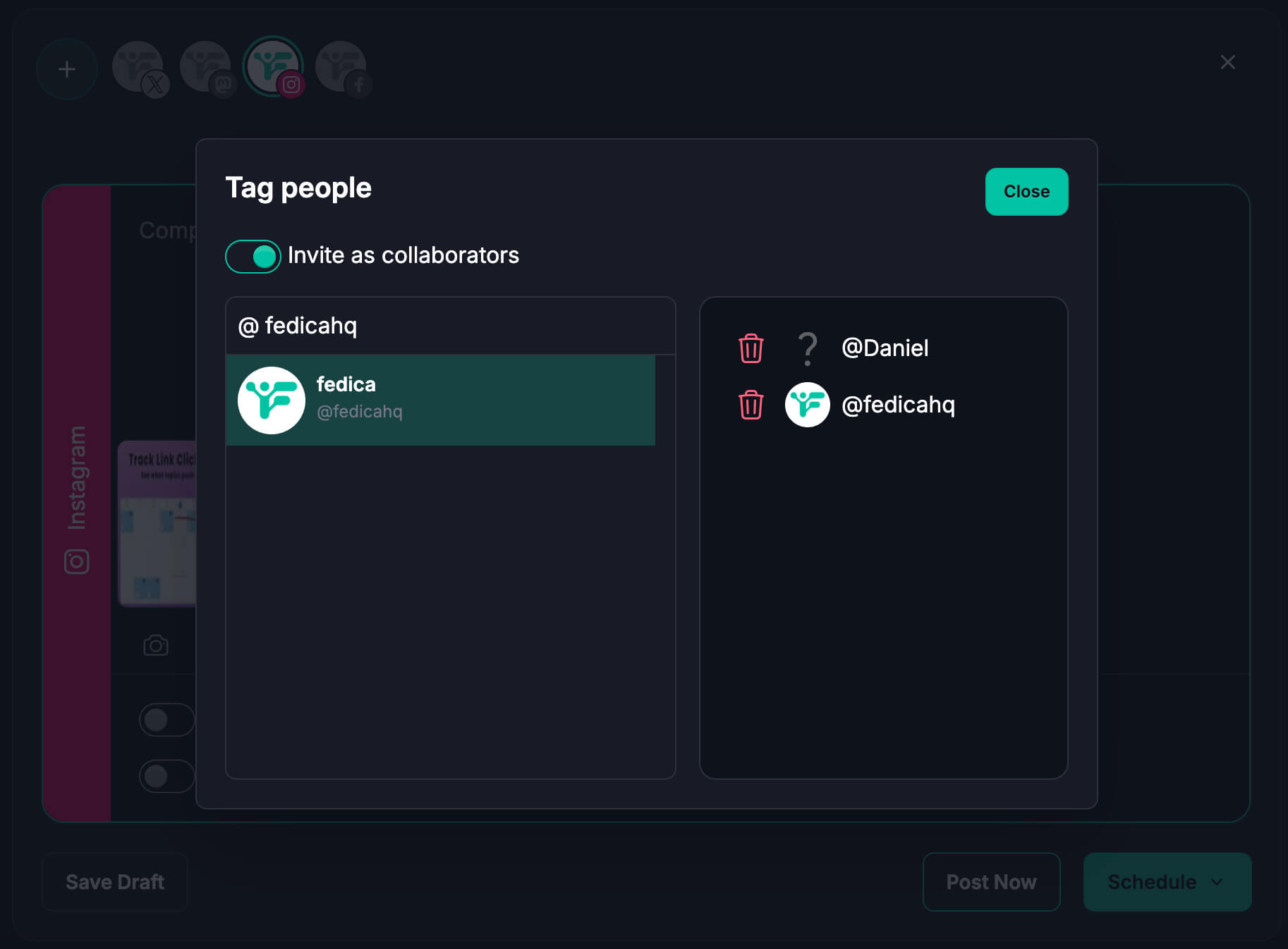
- Once you’ve added collaborators and checked that their usernames are correct, you can rest assured that Fedica will tag them as a collaborator if the username matches, if they are a personal account or business account:
How to accept a collab invite on Instagram
When someone invites you to collaborate, you’ll get a direct message and an activity notification. Open the invite (from the message or the heart icon), tap Review, then Accept or Decline. If you accept, the post is added to your profile grid and your followers will see it.
You can’t edit the post itself (only the original author can), but you can remove yourself as a collaborator later if you want.
Why do a collab post on Instagram?
Collab posts expand reach because the same post is shown to followers of every collaborator. You get shared credit and shared engagement, which can help with discovery and growth. In practice, collab posts often deliver significantly more reach and engagement than solo posts. Some accounts see around 2x reach or more when both audiences see the same post.
Brands and creators use them for partnerships, influencer campaigns, and co-launches so both audiences see the content without posting twice. Planning them in advance so the post goes live at the right time for a campaign or launch, and that makes the payoff even clearer.
Can you add a collaborator to an Instagram post after posting?
Yes. Go to the post on your profile, tap the three dots at the top right, then Edit. Tap Tag people, then Invite collaborators. Search for the account and add them.
Once they accept the invite, the post shows on their grid too. You keep the same post; no delete or repost needed.
Why can’t I do a collab post on Instagram? (troubleshooting)
If you don’t see Invite collaborators, check these in order.
- Account type: Instagram often requires a Business or Creator account. Switch in Settings if you’re on Personal. If you’re not sure you have a legitimate business, switch to a business account as a Content Creator.
- Account visibility: Some features work only when your account is public.
- App version: Update Instagram to the latest version.
- Invite not received: If your collaborator didn’t get the invite, have them check DMs and Activity, and double-check you spelled their handle correctly.
To plan ahead, use a scheduler so the post is ready at the right time. Then add your collaborator when you publish. Fedica gives you one content calendar and Instagram management tools across 12 platforms and best-time suggestions so your next collab post goes out when it counts.
Frequently Asked Questions
Quick answers to the most common questions about collab posts on Instagram.
Why can’t I do a collab post on Instagram?
Usually it’s your account type, visibility, or app version. Instagram often requires a Business or Creator account (not Personal). Check Settings → Account. If your account is private, switch to public or confirm both accounts can collaborate. Update the Instagram app to the latest version and try again.
Can you add a collaborator on an Instagram post after it’s posted?
Yes. Open the post on your profile, tap the three dots, then Edit. Tap Tag people → Invite collaborators, search for the account, and add them. Once they accept the invite, the post appears on their grid too. Same post; no delete or repost.
How to make someone a collaborator on your post on Instagram?
When you’re creating the post, tap Tag people, then Invite collaborators (not Add tag). Search for their handle, tap their profile to add them, tap Done, then Share. Your collaborator gets a notification to accept; once they do, the post shows on both feeds.
How do I upload a collab?
You don’t upload a collab as a separate thing. You create a normal post or Reel, then before tapping Share you tap Tag people → Invite collaborators and add the other account(s). When you post, they get the invite. So “upload” = create the post, add collaborators in that step, then publish.
Where is the collab button on Instagram?
It’s under Tag people. After you add your photo or Reel and caption, tap Tag people on the post screen. You’ll see Invite collaborators as an option (for a Reel you may see Add tag and Invite collaborators. Choose Invite collaborators so the post goes on their grid).
How do I accept a collab invite on Instagram?
You’ll get a direct message and an activity notification. Open the invite (from the message or the heart icon), tap Review, then Accept or Decline. If you accept, the post is added to your profile grid and your followers will see it.
How to enable collaboration in Instagram?
Switch to a Business or Creator account in Settings → Account type if you’re on Personal. Make sure your account is public (or that your collaborator can be invited per Instagram’s rules). Keep the app updated. There’s no separate “collaboration” toggle. The Invite collaborators option appears when you tap Tag people on a new post or Reel.
Can you schedule a collab post on Instagram?
Yes. Plan and schedule the post in a scheduler like Fedica so it’s ready to go live when you want. You add collaborators when you publish (Instagram doesn’t let you set the invite for a later time), so when it’s time to publish or you get a reminder, open Instagram and add your collaborator via Tag people → Invite collaborators so the invite goes out with the post. Fedica’s content calendar works across 12 platforms so you can slot collab posts alongside the rest of your content.
Why don’t I see the collaboration option in Fedica?
Collabs in Fedica only work when your Instagram account was added through the Facebook connection. In Fedica, go to Manage social networks and add Instagram by choosing the connection through Facebook option (your Instagram must be the business or creator account linked to your Facebook Page). If you added Instagram without Facebook, you can still use tagging, but the collab button won’t be available.