
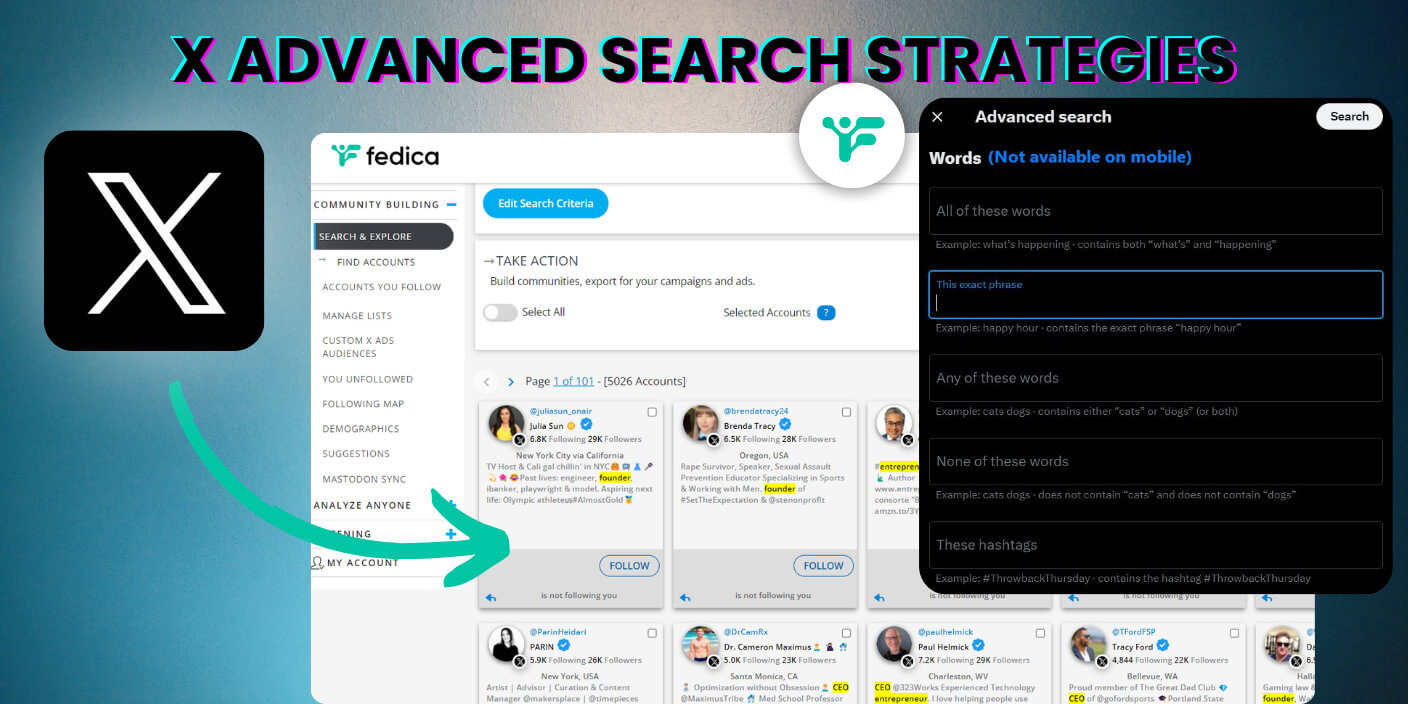
X advanced search lets you filter posts by keyword, account, date, language, location, and engagement. On desktop, use the Advanced Search menu in Explore; on mobile, type search operators directly into the search bar (the menu often does not appear).
This guide gives you a full operator cheat sheet, 15 copy-paste queries by use case, troubleshooting for common failures, and strategies for leads, mentions, and content ideas.
If you only need the fast version, start with the 30-second setup below. For the complete reference, jump to the full operator table or copy-paste query library.
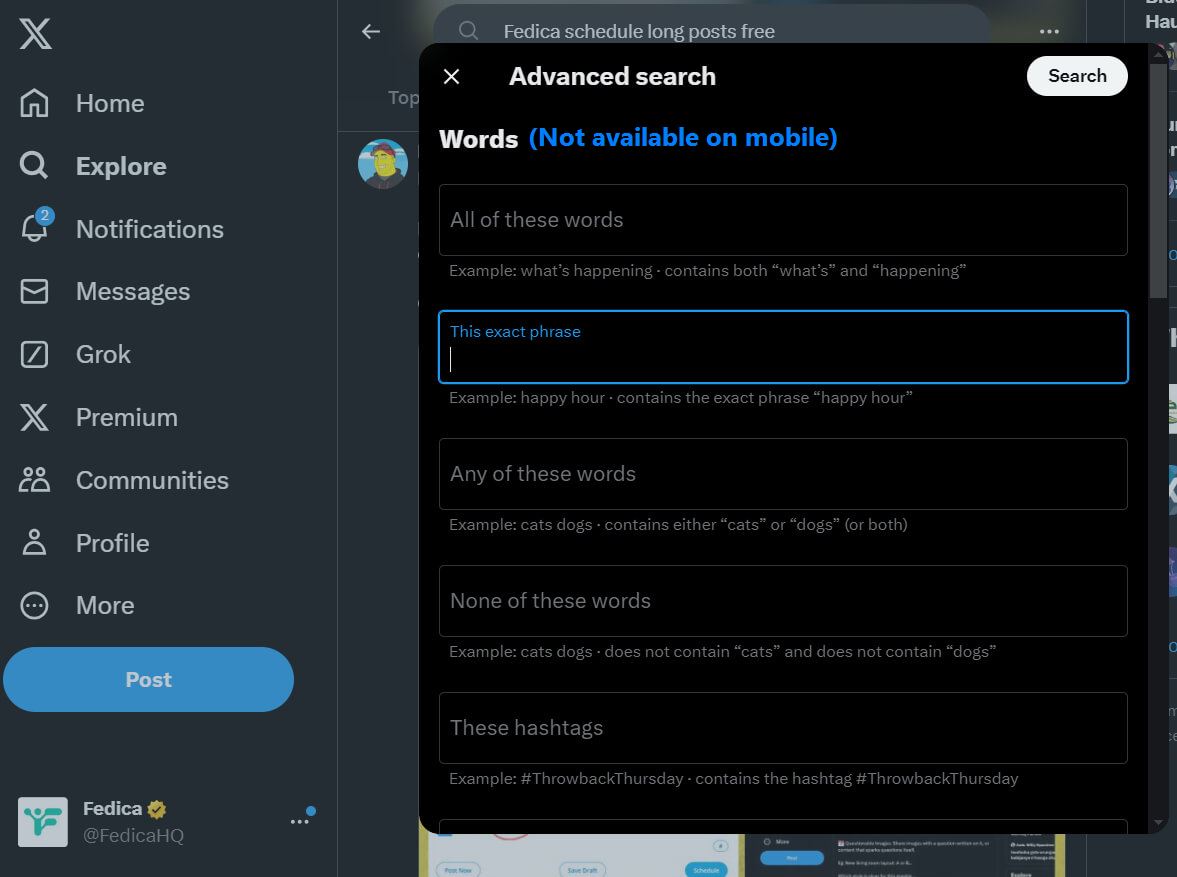
Table of Contents
In this blog you’ll see:
- How to Do X Advanced Search Fast (Without Losing Depth)
- 30-Second Setup
- Copy-Paste Queries You Can Use Right Now
- Mini Operator Cheat Sheet
- When This Works Best
- Complete X Advanced Search Operator Cheat Sheet
- 15 Copy-Paste X Advanced Search Queries (2026)
- Strategy 3: Turn Searches into Real Business Wins With X Advanced Search
- Strategy 4: Generate Unlimited Content Ideas with an X Advanced Search Framework
- Strategy 5: X Advanced Search Accounts Tool to Find Your People
- Use Fedica’s X Advanced Search Tools that X Can't Do
- Why X Advanced Search Is Not Working (Common Mistakes)
- Frequently Asked Questions About X Advanced Search
- Can you do X advanced search on mobile?
- Where is advanced search on X desktop?
- How do I search old posts by date on X?
- What is the difference between from: and @ in X search?
- Why is X advanced search not working?
- Does X advanced search show deleted posts?
- Can you save advanced searches on X?
- Does X have an advanced search page?
- What are the most useful operators for marketers?
- How do I find people, not just posts?
How to Do X Advanced Search Fast (Without Losing Depth)
If you are here for the fastest answer, use this quick setup first, then use the examples below to get better results.
30-Second Setup
- Open X and go to Explore.
- Run any keyword search.
- On desktop, click the three dots beside search and choose Advanced search.
- On mobile, type operators directly into search (the menu often does not appear).
Copy-Paste Queries You Can Use Right Now
- Basic topic scan:
("your topic" OR "related topic") -filter:replies lang:en - Competitor monitoring:
from:competitor (pricing OR feature OR launch) since:2026-01-01 - Untagged brand mentions:
("your brand" OR @yourhandle) -from:yourhandle -filter:retweets - Buyer-intent discovery:
("best" OR "recommend") ("x analytics" OR "twitter analytics") -job -hiring
Mini Operator Cheat Sheet
""= exact phraseOR= either term-word= exclude noisefrom:= posts from accountto:= replies to accountsince:/until:= date rangelang:en= language filter-filter:replies= cleaner result set
When This Works Best
Use this approach when you need to:
- find leads talking about a specific problem
- track competitor launches and positioning
- monitor support issues and untagged mentions
- collect content ideas from real conversations
You now have the fast setup and practical starting queries.
Continue into the full guide for grouped templates, deeper workflows, and strategy-level examples.
Complete X Advanced Search Operator Cheat Sheet
Use these operators in the X search bar on desktop or mobile. Combine them in one query string.
| Operator | What it does | Example |
|---|---|---|
"" | Exact phrase match | "remote work" |
AND | Must include all terms | marketing AND analytics |
OR | Either term | (cats OR dogs) |
-word | Exclude a word | tea -sweet |
from: | Posts from an account | from:nasa |
to: | Replies directed at an account | to:AppleSupport |
@username | Mentions of an account | @nasa launch |
since: / until: | Date range (YYYY-MM-DD) | AI since:2026-01-01 until:2026-03-31 |
lang: | Language code | startup lang:en |
filter:links | Posts containing links | "case study" filter:links |
filter:images | Posts with images | sunset filter:images |
filter:media | Posts with any media | product launch filter:media |
filter:replies | Include only replies | to:yourbrand filter:replies |
-filter:replies | Hide replies | topic -filter:replies |
-filter:retweets | Hide reposts | brand -filter:retweets |
min_faves: | Minimum likes | "hot take" min_faves:50 |
min_retweets: | Minimum reposts | launch min_retweets:20 |
filter:verified | Verified accounts only | crypto filter:verified |
near: | Posts near a place | near:Chicago protest |
within: | Radius with near: | near:Chicago within:15mi |
geocode: | Lat, long, radius | geocode:40.71,-74.00,10mi |
list: | Posts from list members | list:1234567890 AI |
url: | Posts linking to a domain | url:fedica.com |
Tip: Wrap OR groups in parentheses when combining with AND, e.g. (Tesla OR BMW) AND "electric vehicle".
15 Copy-Paste X Advanced Search Queries (2026)
Replace bracketed placeholders with your topic, brand, or handle.
Topic research & monitoring
- Clean topic scan
("your topic" OR "related topic") -filter:replies lang:en - High-engagement posts
"your topic" min_faves:25 -filter:replies lang:en - Posts with links only
"your topic" filter:links since:2026-01-01
Brand & support listening
- Untagged brand mentions
("Your Brand" OR "yourbrand.com") -from:yourhandle -filter:retweets - Support complaints to your handle
to:yourhandle (help OR issue OR broken OR refund) -filter:retweets - Common misspellings
("Your Brand" OR "Yor Brand" OR "YourBrnad") -from:yourhandle
Lead generation & buying intent
- Problem-aware buyers
("looking for" OR "need a") ("your category" OR "your tool type") -job -hiring - Recommendation requests
("best" OR "recommend") ("x analytics" OR "twitter analytics") lang:en -filter:replies - Frustration signals
("struggling with" OR "frustrated by") ("engagement" OR "reach") ("x" OR "twitter")
Competitor intelligence
- Competitor launches
from:competitor (launch OR update OR "new feature") since:2026-01-01 - Competitor positioning
from:competitor ("pricing" OR "plans" OR "enterprise") since:2026-01-01 - Audience complaints to competitor
to:competitor (support OR bug OR broken OR issue) -filter:retweets
Content ideas & trends
- How-to content gaps
("how to" OR "tips for") ("your niche") min_faves:20 lang:en - Algorithm / platform chatter
("x algorithm" OR "twitter algorithm") ("what changed" OR "update") since:2026-01-01 - Hot takes in your niche
("hot take" OR "unpopular opinion") ("your niche") min_faves:15 -filter:replies.
Note: Sometimes X advanced search doesn’t show results at all or doesn’t give expected outcomes so investing in an advanced search tool like Fedica’s X search filters which has access to the official X API is your solution.
Strategy 3: Turn Searches into Real Business Wins With X Advanced Search
There’s a bunch of other ways you can use X to find people, content ideas and more:
Track Untagged Mentions
- People sometimes talk about brands without tagging them. Use advanced search to find these untagged mentions. By the way, Fedica does this automatically with email notifications through its Twitter Post Notifications tool for X. Handy, right?
- Example: If you run “@BrewHaven,” try searching
“Brew Haven”without any tags to catch mentions where users discuss your brand but don’t use the official mention or hashtag.
Find Common Misspellings
- Look for common misspellings related to your brand or products.
- Example: If your brand is “EcoSmart,” search for variations like
“Eco Smarrt”or“EccoSmart”to catch misspelled mentions.
Combine that with post reach tracking in Fedica to see how far those misspelled mentions actually spread.
Discover Keywords that Attract Customers
- Identify industry-specific terms and problem-aware phrases to find potential leads.
- Example: If you sell fitness equipment, search for terms like
“home workouts”or“multi-use exercise equipment”to find users discussing relevant issues.
Search Tweets to/from Specific Users
- Use this feature for competitor analysis or to find niche influencers.
- Example: Search for
from:CompetitorBrandorto:InfluencerNameto see what they’re tweeting about and identify potential opportunities.
Find Specific Influencers
- Find influencers who are influential within your niche but not necessarily huge celebrities.
- Example: Use a tool like Fedica’s Twitter Influencers tool. It helps you find influencers who aren’t too big but have the most shared followers with your audience. This means they’re actually influential in your community. You can also use this to identify who not to engage with if you’re looking to expand your influence to people who don’t know you.
Fedica also surfaces your top interactors, top followers, and real influencer list so you know who’s actually engaging, not just who has a big follower count. You can analyze any account or find common followers between accounts to spot overlap with your ideal audience.
Save Your Searches
- If you come across a valuable search query, save it for future use.
- Example: Save a search for
“sustainable fashion” AND “trends”to quickly access updates on industry trends.
Monitor User-Generated Content (UGC)
- Look for posts where users share content about your brand or industry to engage and build relationships.
- Example: Search for
“#BrewHaven”or“Brew Haven review”to find and interact with users who have shared their experiences with your brand.
Strategy 4: Generate Unlimited Content Ideas with an X Advanced Search Framework
Finding Content Ideas with X Advanced Search
Here’s a little framework I use to generate endless content ideas:
- List all the problems your ideal customer face:
- Think of the problems at every intricate step when using your product or service (the more the better!)
- List every problem that happens before your service
- List every problem that happens after your service
- List all the obstacles from where your ideal client is at and where they want to go
- List all the next problems they will face after your service is provided
- Turn those problems into “how-to” statements:
- Rephrase each problem using this formula:
- How to [Problem’s Solution] without [Problem’s Difficulty] even if you [Worst Obstacle Related to Problem].
- Example Problem: I can’t ever find good content ideas!
- Example Solution Phrase: How to [find unlimited content ideas] without [spending hours thinking them up] even if you [don’t have all the information] yet to actually help them!
- Look up and post about the solutions to these problems. they are literally the problems your ideal customers have. Use different content formats to answer them, like lists, 2 step processes, frameworks, cheat sheet infographics, etc.
- Transform these into daily content pieces and I guarantee you this is the fastest way to become one of the top thought leaders in your industry.
This approach not only helps you create relevant content but also refines your services and attracts more customers. Win-win-win.
Strategy 5: X Advanced Search Accounts Tool to Find Your People
If you don’t know who you’re looking for, but can describe them, like the followers you want, the customers you want, the collaborations you want… Search & Explore is the tool to use!
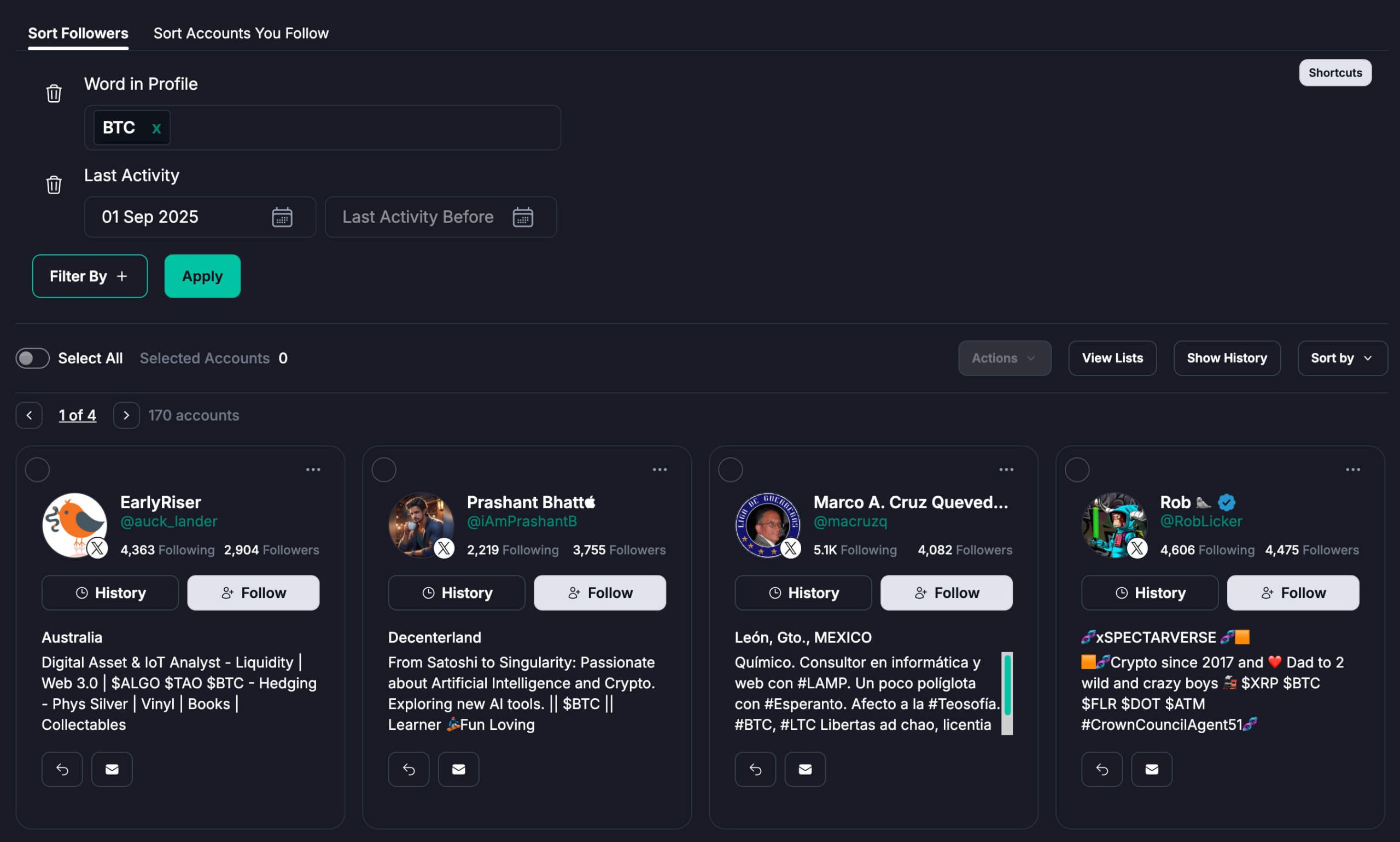
Here’s the Search Criteria for Fedica’s X Advanced Search:
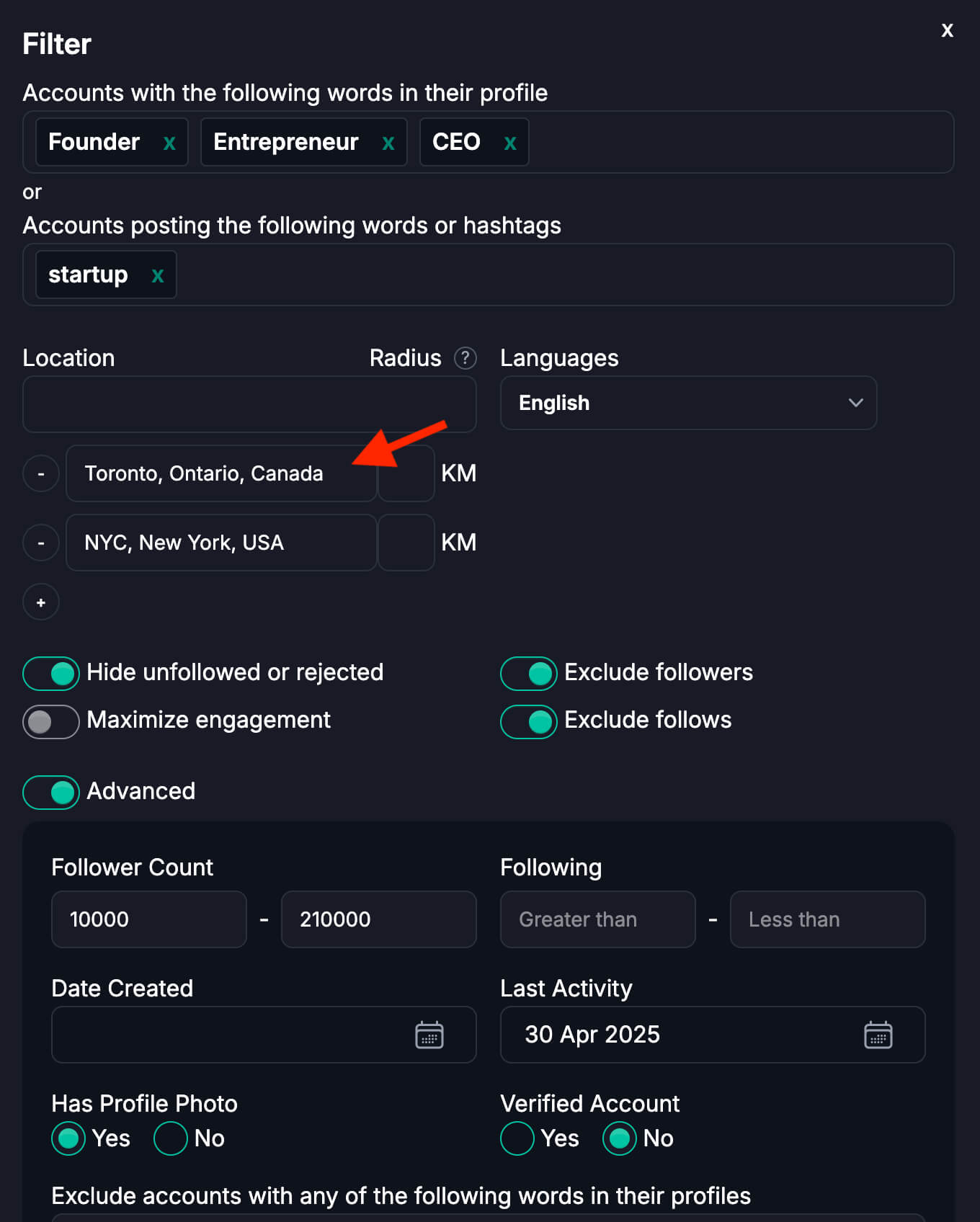
Our community uses this tool to find people already interested in their X Ads so they can show their ad campaign to interested and active users they chose ahead of time.
Others use it to find active users who talk about the right stuff to qualify them as leads to contact for their businesses!
Use Fedica’s X Advanced Search Tools that X Can’t Do
While X Advanced Search is powerful, it has its limits. Here’s where Fedica steps in to save the day:
- Track multiple keywords simultaneously
- Get email notifications for mention or keyword alerts
- Find the best influencers automatically
- Provide demographic breakdowns of conversations with Twitter hashtag analytics
- Track hashtags comprehensively
- Twitter Map Tool for city-level mapping across the globe
- Search in Twitter followers or search someone’s Twitter followers
Look, X Advanced Search is great, but if you want to take your social media strategy to the next level, Fedica is an official enterprise API tool with more filters, more tools, and more ways to find the exact people you want to connect with on X, even in the results of your X Analytics.
Why X Advanced Search Is Not Working (Common Mistakes)
| Problem | Weak query | Better query |
|---|---|---|
| Results too broad | marketing | ("social media marketing" OR "x marketing") lang:en -filter:replies |
| No results at all | Too many filters stacked | Remove one operator at a time until results appear |
| Mobile menu missing | Waiting for Advanced Search UI | Type operators manually: from:user "phrase" since:2026-01-01 |
| Old posts missing | No date window | "topic" since:2025-01-01 until:2025-12-31 |
| Too much spam / noise | No exclusions or engagement floor | "topic" -filter:replies min_faves:10 lang:en |
| Wrong account scope | Searching @handle only | Use from:handle for their posts, to:handle for replies to them |
| OR logic breaks | Tesla OR BMW AND ev | (Tesla OR BMW) AND "electric vehicle" |
Rule of thumb: Start simple, then add one operator per refinement. Smaller intent-specific queries are easier to tune than one giant string.
Frequently Asked Questions About X Advanced Search
Can you do X advanced search on mobile?
Not through the full desktop menu. On iPhone and Android, open Explore, tap the search bar, and type operators directly. For example from:username, "exact phrase", since:2026-01-01, and -filter:replies. See our mobile advanced search guide for step-by-step screenshots.
Where is advanced search on X desktop?
Go to Explore, run any search, then click the three dots next to the search field and choose Advanced search. You can also type the same operators manually in the search bar.
How do I search old posts by date on X?
Add since: and until: in YYYY-MM-DD format:from:username "keyword" since:2025-06-01 until:2025-06-30
What is the difference between from: and @ in X search?
from:username returns posts published by that account. @username finds posts that mention that account. Use to:username for replies directed at them.
Why is X advanced search not working?
Usually syntax, unsupported filters in the app view, or a query that is too broad or over-filtered. Simplify first, one keyword, no date, then re-add operators one at a time. Check X’s operator documentation if a filter stops returning results.
Does X advanced search show deleted posts?
No. X search only surfaces posts that still exist and are indexed. Deleted or protected posts will not appear.
Can you save advanced searches on X?
X does not offer robust saved-search alerts natively. You can bookmark a query string, or use a tool with keyword alerts and email notifications so matches come to you instead of re-running the search daily.
Does X have an advanced search page?
Yes. On desktop, open Explore, run a search, click the three dots next to the search field, and choose Advanced search. You can also run the same filters by typing operators in the search bar on desktop or mobile. Official docs: help.x.com/en/using-x/x-advanced-search.
What are the most useful operators for marketers?
Start with: "", OR, -, from:, to:, since:, until:, -filter:replies, min_faves:, and lang:en. Add filter:links when you want posts that cite external sources.
How do I find people, not just posts?
Native X advanced search is post-first. To find accounts by bio keywords, follower count, location, or activity, use Fedica’s Search & Explore tool: